

Why Your Browser Alarm May Not Ring on Time
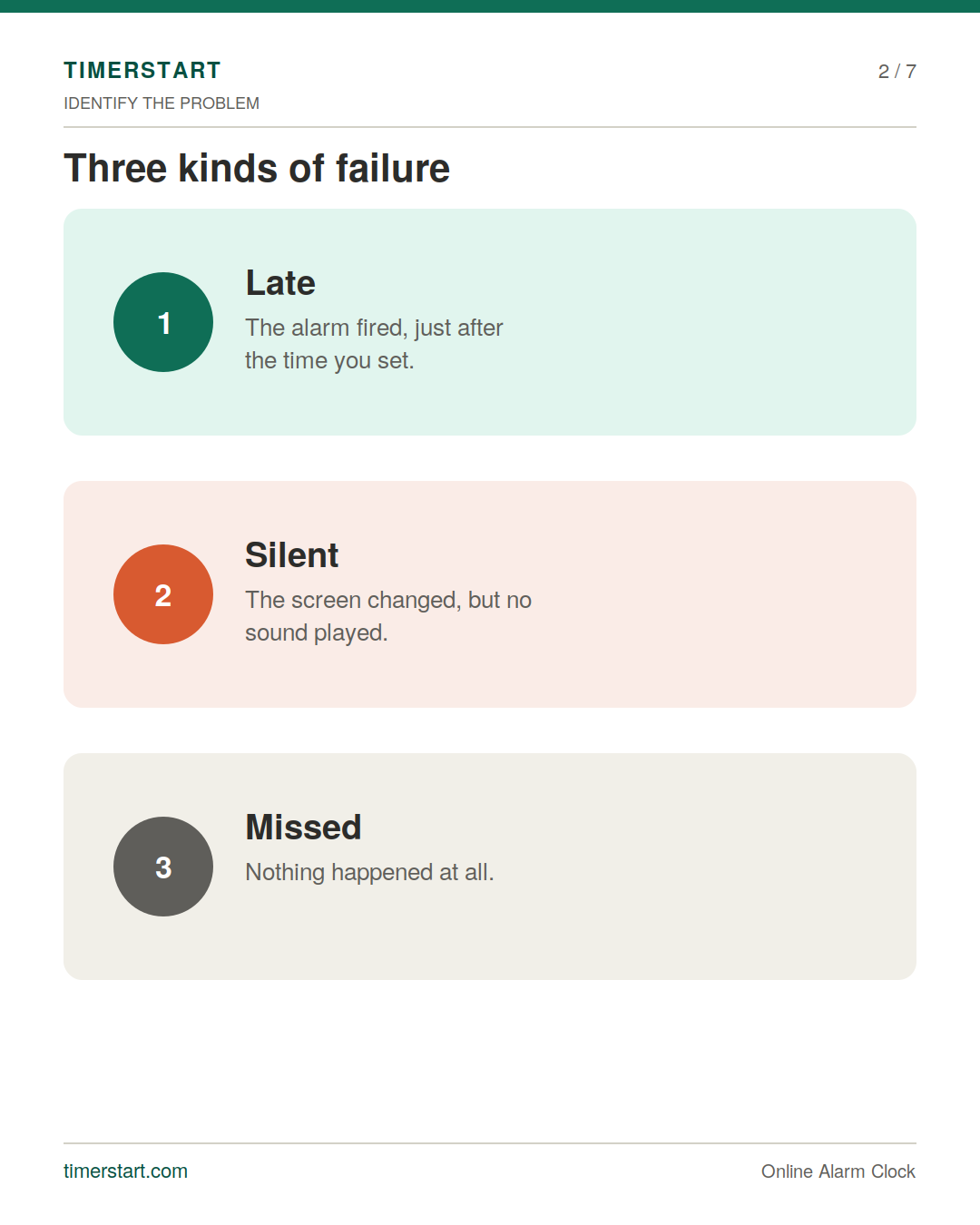
You set an alarm in your browser, and something went sideways. Maybe it didn't go off at all. Maybe it fired ten minutes late. Maybe the screen changed but you never heard a sound. These are three different problems, and figuring out which one you had is the fastest way to fix it.
This isn't about whether an online alarm works when your laptop is closed or Do Not Disturb is on - we've covered that separately. This one picks up after the fact: your alarm didn't behave as expected, and you want to know why.
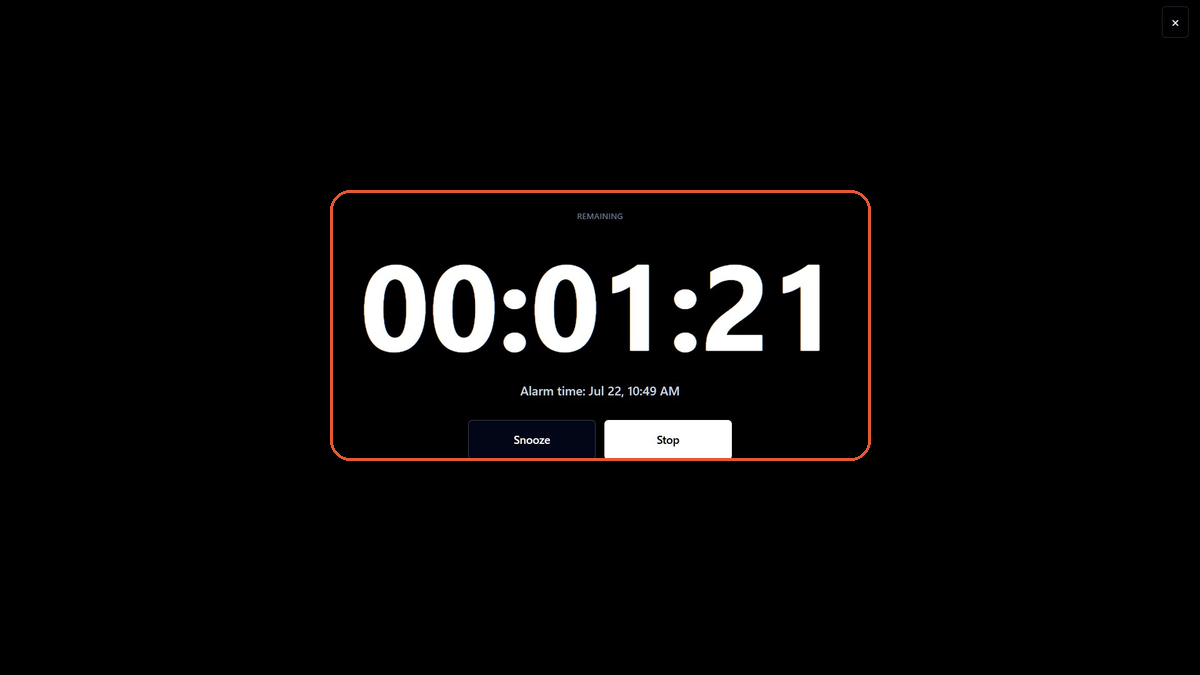
Quick Answer: Why a Browser Alarm May Be Late or Silent
A handful of things can go wrong, and they're not all the same kind of failure.
The alarm might never have been active - set for 7:30 AM instead of 7:30 PM, say, or never saved properly. The tab might have closed. The device could've gone to sleep. Browsers also throttle background tabs to save battery, which can shift timing. And sometimes the alarm fires exactly on schedule but no sound comes out, because the tab got muted, the volume was down, or audio went to a different output than expected.
Before anything else: was this a timing problem, a page problem, or a sound problem? That distinction shapes everything below.
Worth opening TimerStart's Online Alarm Clock now if you haven't already - set a short test alarm before relying on it for something longer. More on exactly how, shortly.
Test the Online Alarm First
Use TimerStart's Online Alarm Clock to set a short test alarm before relying on it for a longer reminder.
Browser Alarm Troubleshooting Checklist
Swipe or scroll through the browser alarm checklist.
Identify What Actually Failed
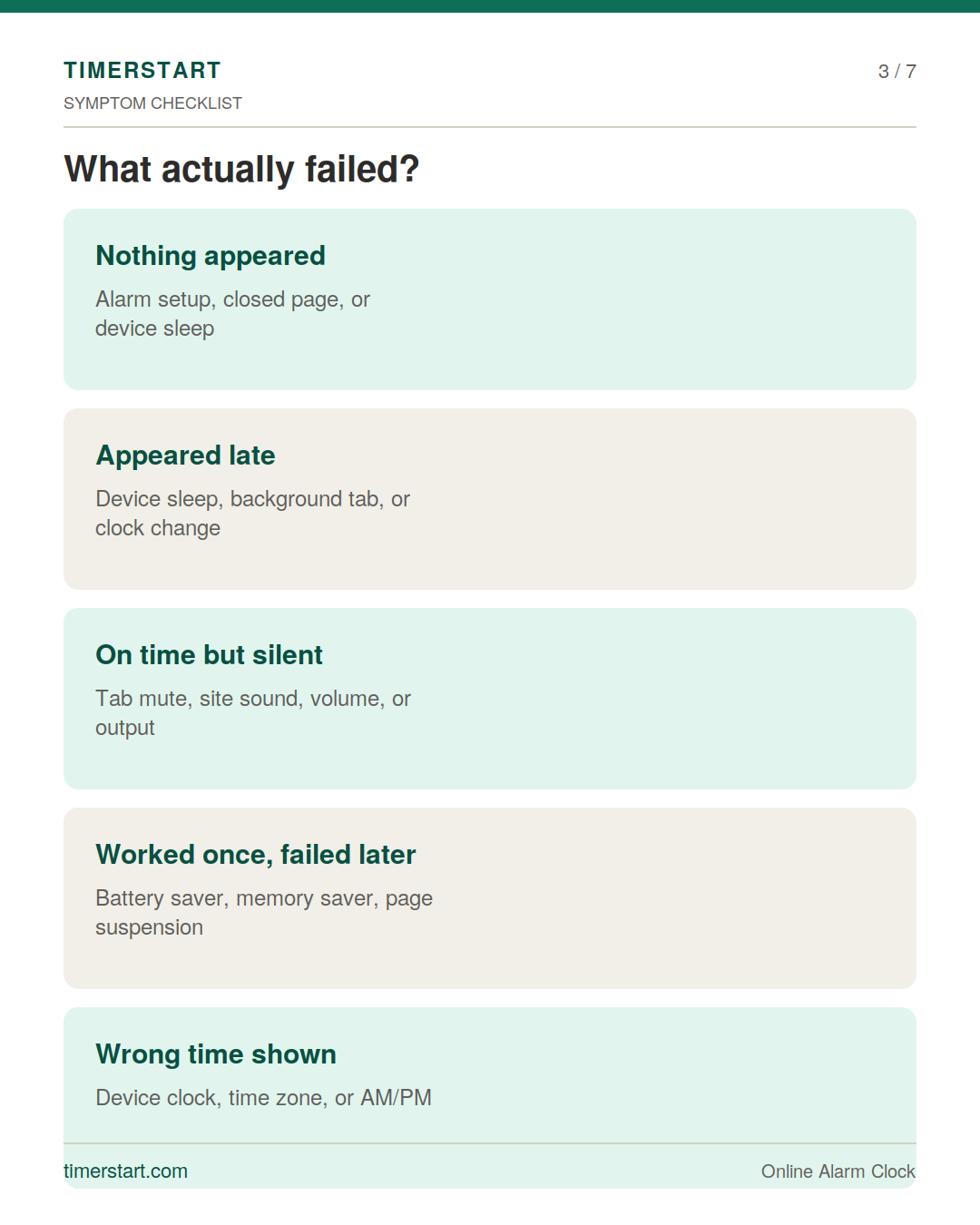
A quick way to narrow things down, based on what you experienced:
Browser Alarm Symptom Checklist
| Symptom | Likely area to check first |
|---|---|
| Nothing appeared at all | Alarm setup, a closed page, device sleep, or a suspended tab |
| Alarm appeared late | Device sleep, background scheduling, or a clock change |
| Appeared on time but stayed silent | Tab mute, site sound permissions, volume, or audio output |
| Worked in a quick test but failed later | Device sleep, battery saver, memory saver, or page suspension |
| Showed the wrong remaining time | Device clock, time zone, or an incorrect alarm setting |
Treat these as starting points, not confirmed causes. More than one thing can be going on at once.
Confirm the Alarm Was Actually Set
Rule out the simple stuff first. Check the alarm sits in your active list. Look again at the hour and minute, then a third time at AM versus PM - this trips up more people than you'd guess. Confirm nothing accidentally stopped or deleted it, that the countdown is actually running, and that the time is still in the future.
Check Whether the Tab and Browser Stayed Open
TimerStart's alarm page needs to stay open to keep working. Close the tab, and the alarm stops with it. Close the browser and you've removed the page entirely.
Minimising is different - the page is still open, just not visible. And if your browser restored a session later, that's not proof the original alarm kept running while you were away. For the full picture on closed tabs and Do Not Disturb, see our browser alarm reliability guide.
Did the Device Go to Sleep?
Minimising a window and putting a device to sleep are not the same thing. A page can only run while the device allows it to, and once a laptop sleeps - closing the lid often triggers this - the page stops with it. A locked or sleeping phone works the same way.
Waking the device afterward doesn't tell you whether the page ran normally the whole time it was asleep. If something needs to go off while your device might be asleep, that's exactly when a native alarm makes more sense.
Why Background Tabs Can Affect Timing
Browsers deliberately throttle background tabs to save battery and processing power - that's intentional behaviour, not a bug, and it can mean a page updates less precisely than it would in the foreground. How much this affects any given alarm depends on the browser and device, so it's not accurate to say every background tab will misfire, or that foreground tabs are always perfectly on time.
The Alarm Triggered, But There Was No Sound
If the screen changed at the right time and you just didn't hear anything, that's a sound problem, not a timing one, and worth treating separately.
Usual suspects: device volume was lower than expected, the tab got muted, the site's sound permission was blocked, or the alarm sound was never actually tested. Autoplay restrictions in some browsers can also affect automatic sound. It's also possible the sound played - just through headphones or a different output than you assumed.
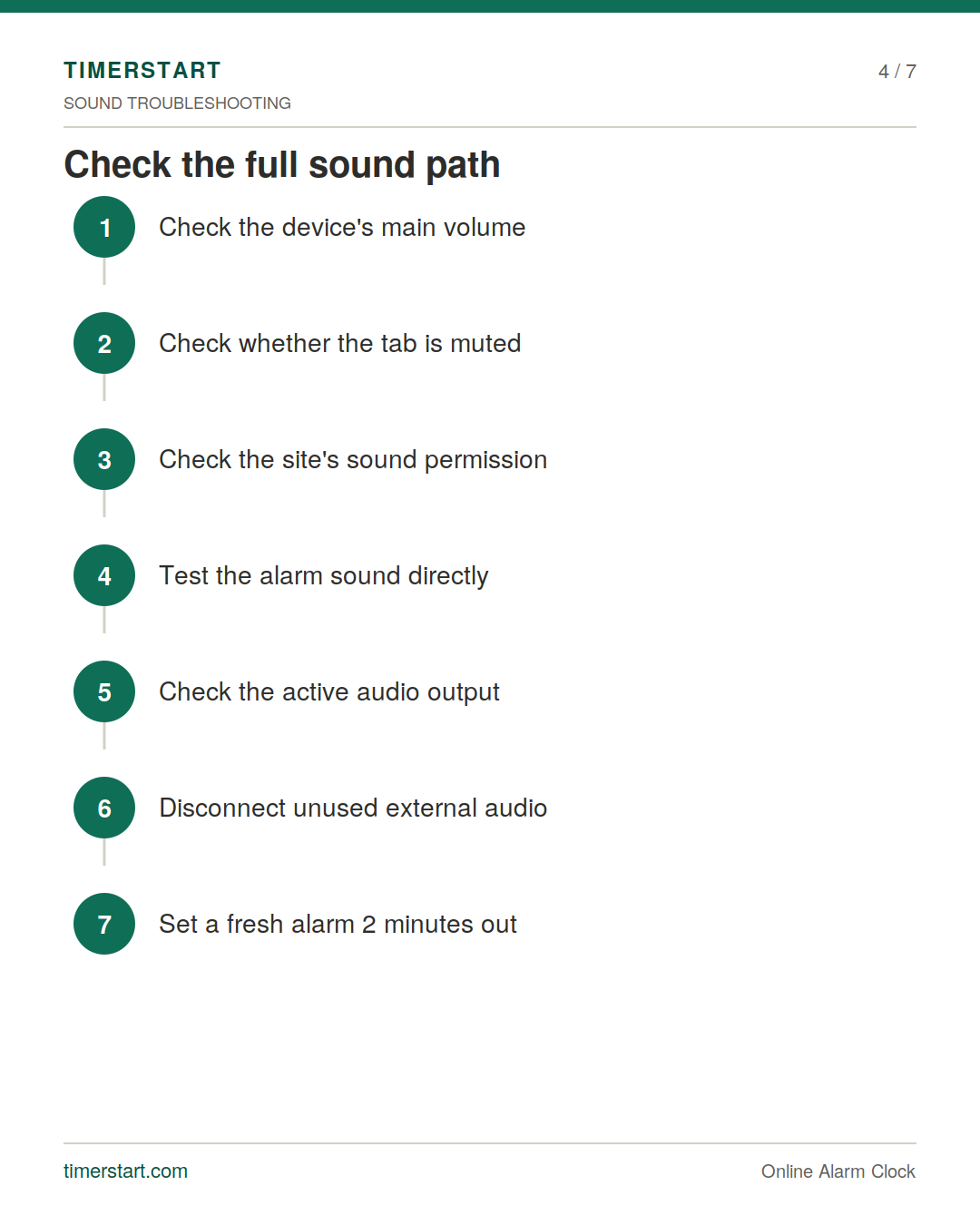
Check the Full Sound Path
Roughly in order:
- Check the device's main volume.
- Check whether the browser tab is muted.
- Check whether the site has permission to play sound.
- Actually test the alarm sound you've picked.
- Check which speaker or headphone output is active.
- Disconnect an unused external audio device, if relevant.
- Set a fresh alarm two minutes out and watch it happen.
An alarm can trigger exactly on schedule while the sound is blocked somewhere along this path - which is why timing and sound deserve separate checks.
Battery Saver, Memory Saver, and Page Suspension
Some browsers reduce background activity to save resources, and under memory pressure may suspend or discard a page you're not using. Find the tab reloaded later, and that's the browser being efficient - but it means whatever was running before started fresh, which isn't the same as the alarm staying active the entire time. How aggressive this gets depends on your browser, device, and power settings, so it's hard to generalise.
Check the Device Clock, Time Zone, and Alarm Time
Sometimes it isn't the browser at all - it's the input. Confirm the device clock and time zone are correct. Recheck AM and PM (yes, again). If you travelled recently or the device shifted time zones on its own, factor that in. Comparing your alarm time against TimerStart's live clock is a quick sanity check.
Run a Two-Minute Browser Alarm Test
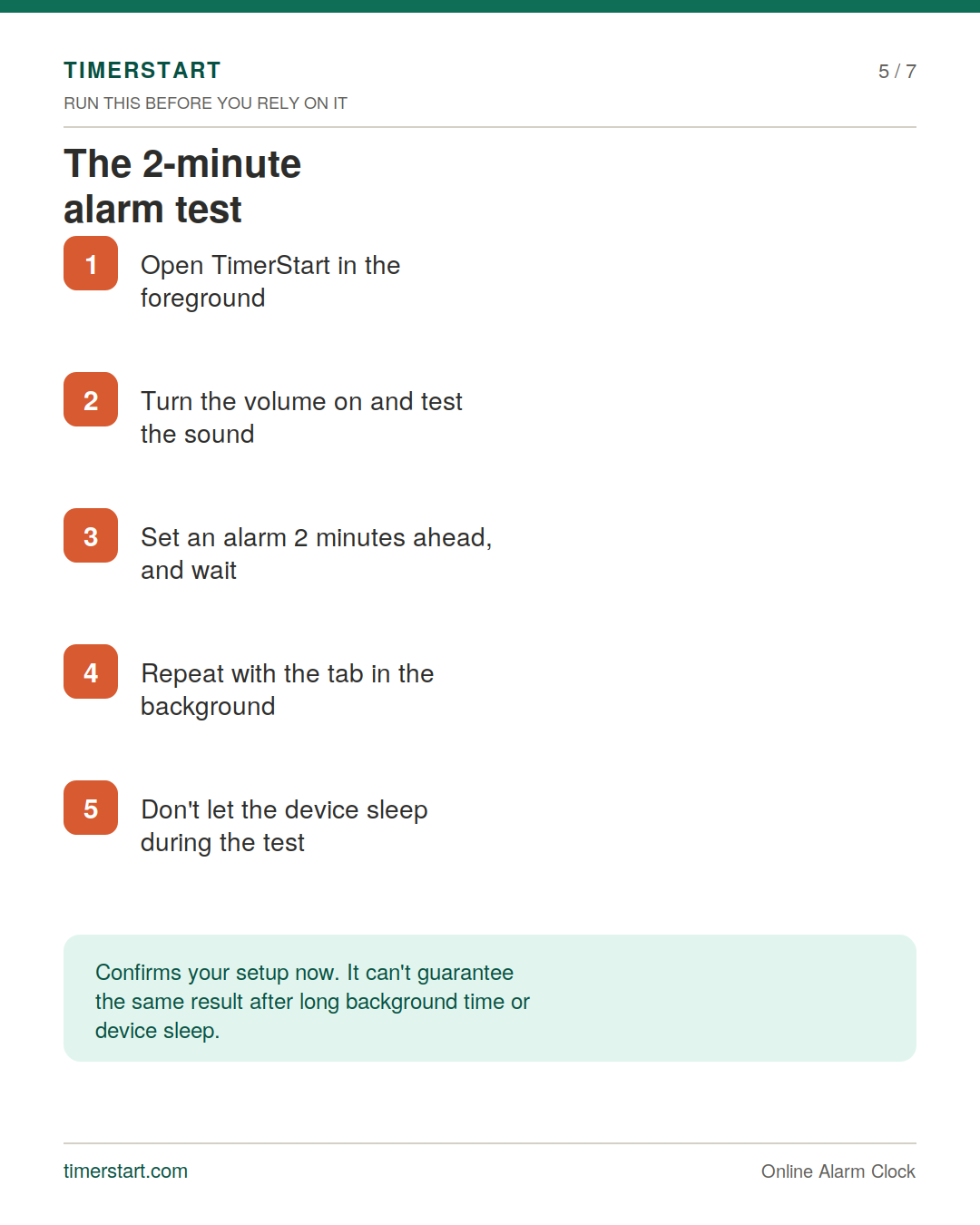
The most useful thing in this article, honestly. Before trusting a browser alarm for anything important, spend two minutes confirming it works on your setup: open TimerStart, keep the page in the foreground, make sure volume is on, and test the alarm sound directly. Set an alarm two minutes ahead and wait. Once that works, try it again with the tab in the background, without letting the device sleep. Watch whether both the visual alarm and sound show up each time.
This tells you whether the setup works right now, on your device. It can't tell you whether things will behave identically after hours in the background, after sleep, or after a browser update. Worth repeating occasionally rather than trusting once.
Two-Minute Test
Before relying on a browser alarm, set one two minutes ahead and watch whether both the screen and sound appear.
Watch a Short Alarm Test
Browser Alarm vs Native Alarm: Which Should You Use?
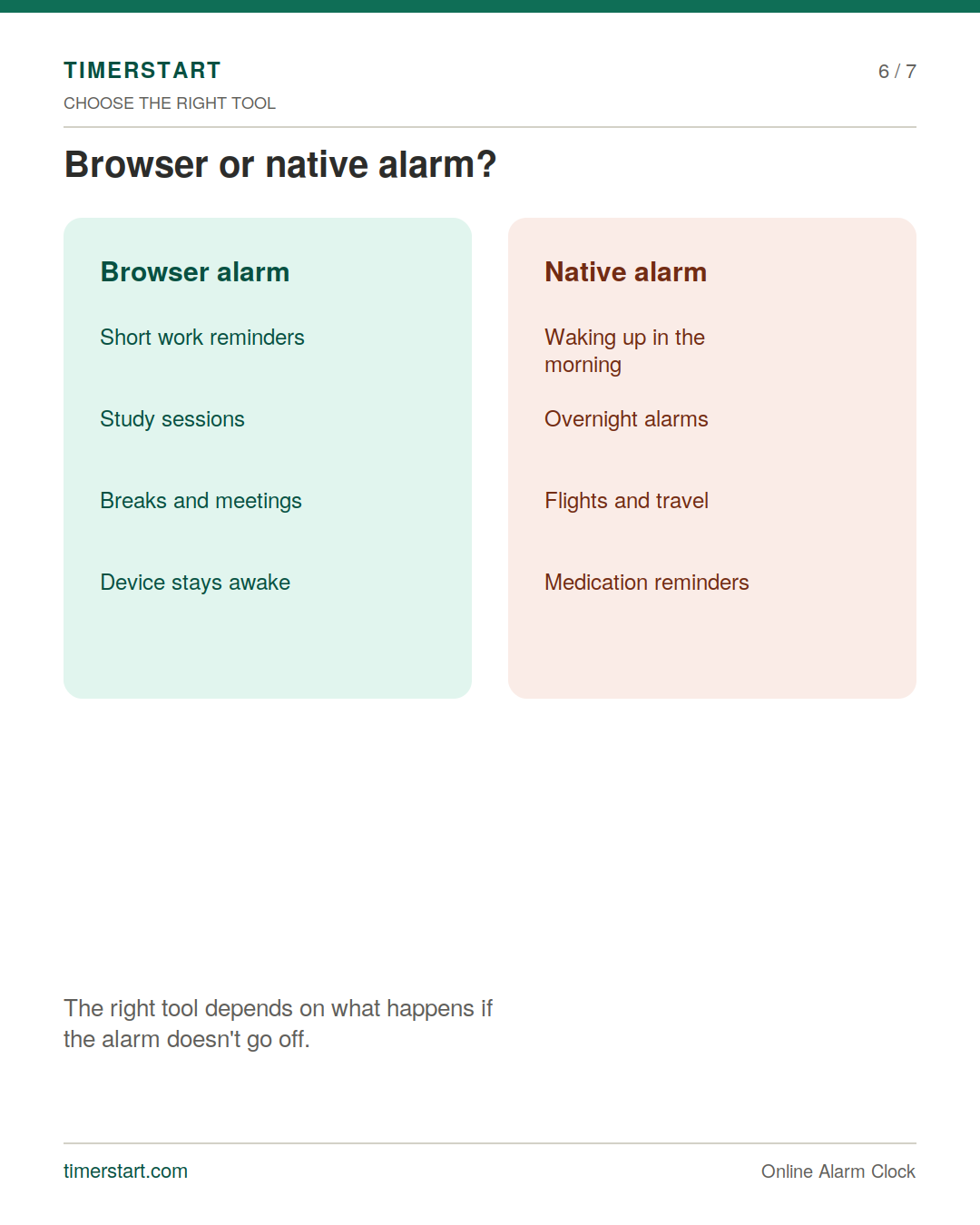
A browser alarm suits short reminders - a work break, a study session, a meeting while your computer's already on, anything where you'll realistically be at that device the whole time.
For anything with real consequences if missed - waking up, an overnight alarm, a flight, medication - a native alarm app is the safer bet. Browser alarms aren't useless; the right tool just depends on what happens if it doesn't go off.
Browser Alarm vs Native Alarm at a Glance
Browser alarm fits
- short work reminders
- study sessions
- breaks and meetings
- when the device stays awake
Native alarm is safer for
- waking up
- overnight alarms
- flights and travel
- medication reminders
- anything critical
Use TimerStart More Reliably
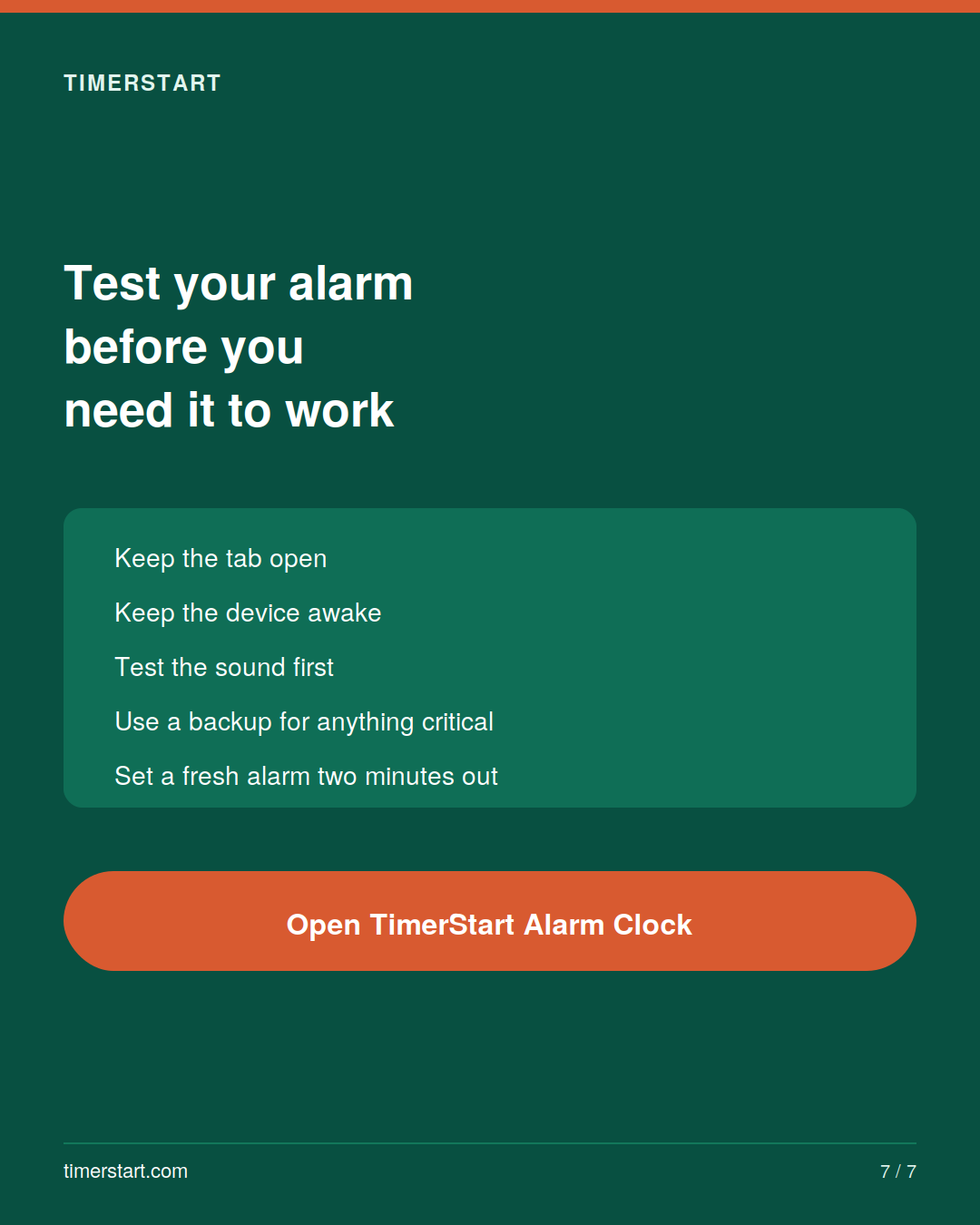
Before relying on it: set the correct hour and minute, double-check AM or PM, confirm the countdown is running, keep the page open, keep the device awake, test the sound, and check volume and audio output. For anything genuinely critical, pair it with a backup rather than relying on it alone.
Set a short test alarm on TimerStart now and confirm both the screen and sound work before relying on it for something longer.
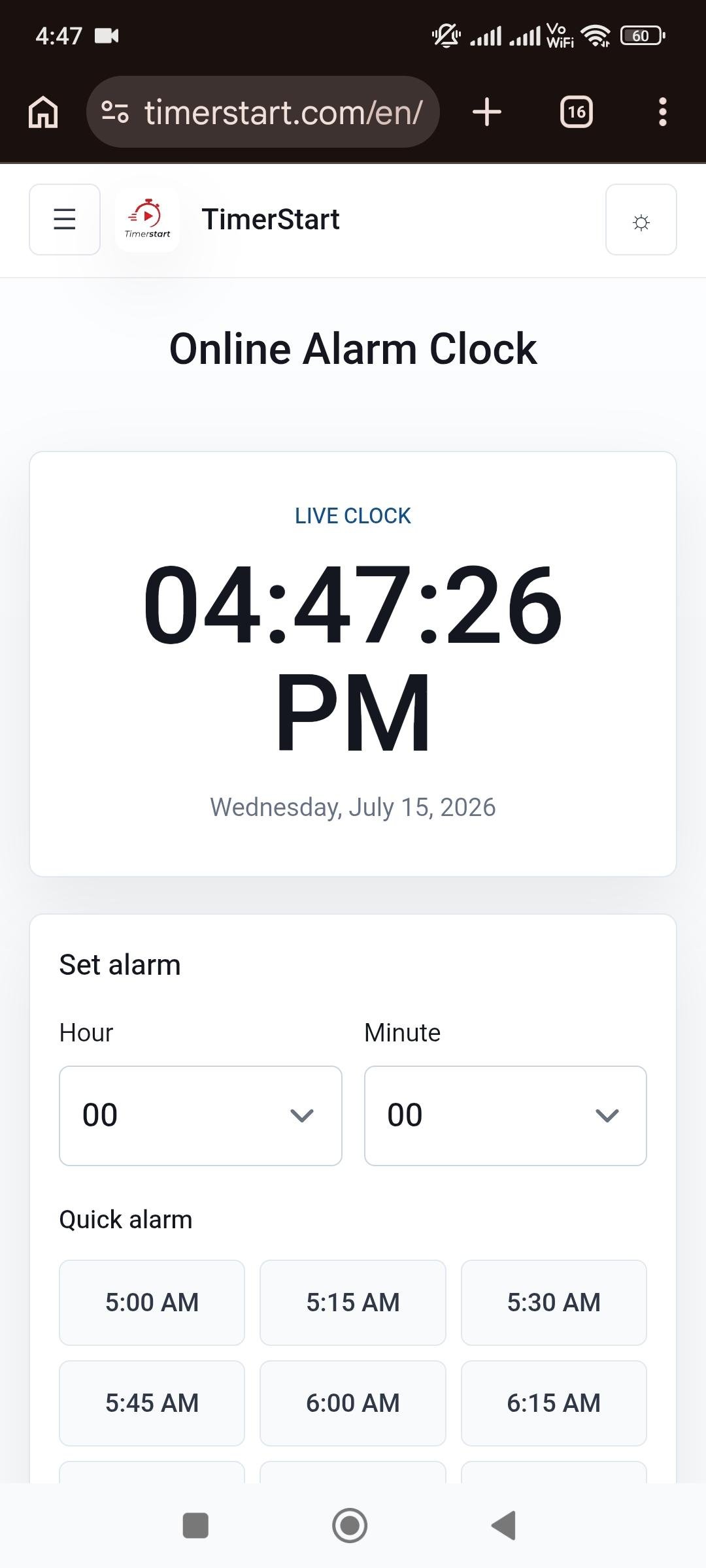
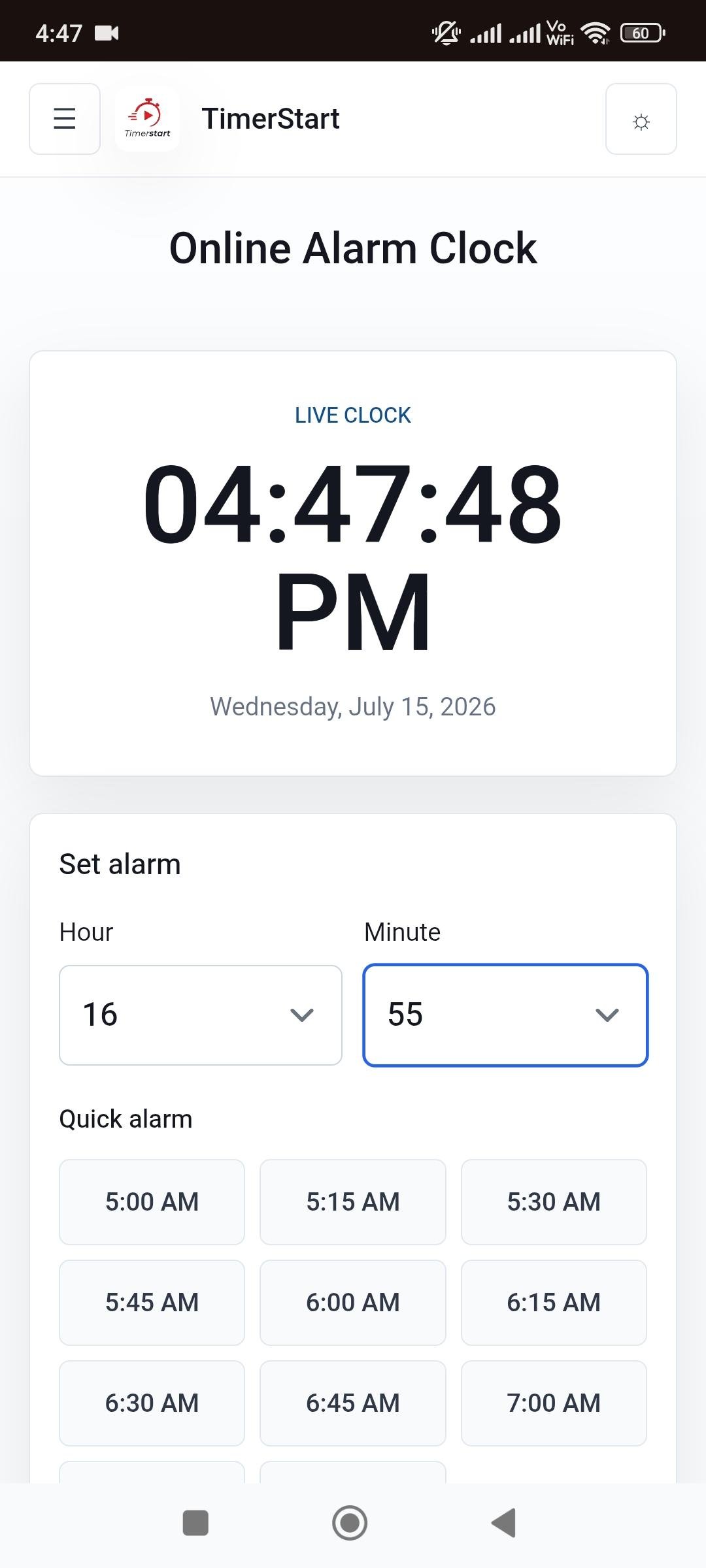
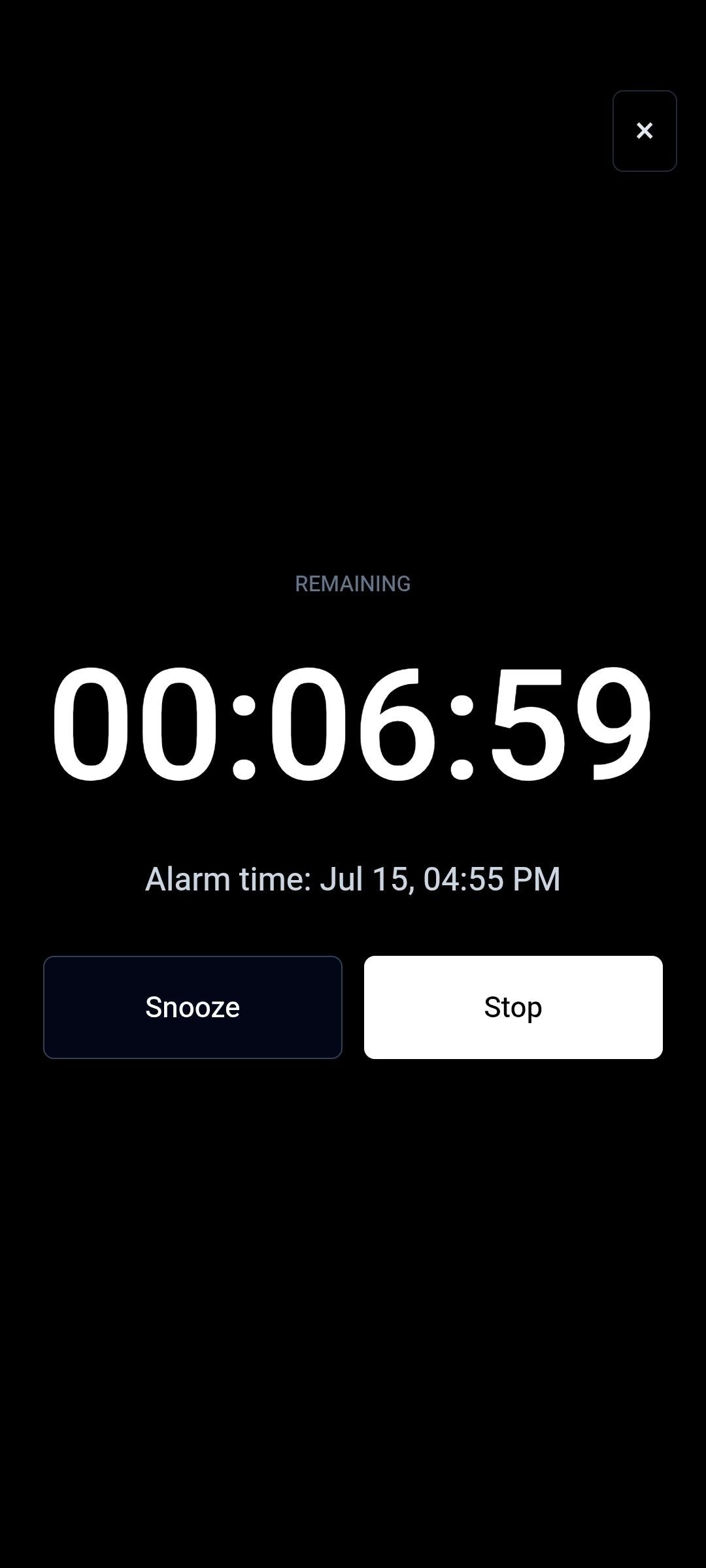
TimerStart Alarm Screens to Check
Swipe or scroll through the Online Alarm Clock screens.
FAQs About Browser Alarms Not Ringing
These answers cover common reasons a browser alarm may be late, silent, or missed.
Why did my browser alarm not ring?
Usually the alarm wasn't set correctly, the tab or browser closed, the device slept, or a background restriction affected the page.
Why did my online alarm ring late?
Could be device sleep, background-tab throttling, or a clock change - rarely just one universal cause.
Why did the alarm appear but make no sound?
That's a sound-path issue, not timing - check tab mute, site sound permission, volume, and audio output.
Does the browser tab need to stay open?
Yes. Closing the tab or browser stops a browser-based alarm.
Can I minimise the browser window?
Yes - minimising differs from closing. The page stays open even if you can't see it.
Can a background tab delay an alarm?
It can, depending on the browser and device, since background tabs are often throttled. It doesn't mean every one will be affected.
Will a browser alarm work if my laptop sleeps?
Not reliably - a sleeping device generally stops running the page until it wakes.
Can battery saver affect a browser alarm?
Possibly, since battery-saving modes can limit background activity, though this varies by device.
Can memory saver close an alarm tab?
Some browsers may suspend or discard inactive tabs under memory pressure, which can affect an alarm running there.
Why is my alarm sound going through headphones?
Your device may be routing audio to whatever output is currently selected, not always the one you expect.
Does browser autoplay affect alarm sound?
It can - some browsers restrict automatic sound until there's been interaction with the page.
Should I test an online alarm first?
Yes - a two-minute test, once in the foreground and once in the background, tells you a lot before you actually need it.
Is a browser alarm reliable for waking up?
It can work for lighter situations, but for something you can't miss, a native alarm is safer.
Should I use a backup alarm?
For anything critical, yes - pairing a browser alarm with a native one is the safer approach.
Is TimerStart the same as my phone's built-in alarm?
No - TimerStart runs in your browser and depends on the page staying open and the device staying awake, unlike a native alarm app built into your phone's operating system.
Related reading
For the browser-tab and Do Not Disturb basics, read the browser alarm reliability guide. For choosing between a browser alarm and a phone alarm, see online alarm vs phone alarm. For focused work blocks, try the 30 minute timer for study, work, and breaks.