

How to Add Weeks, Months, or Years to a Date
Adding a fixed number of days to a date is simple arithmetic. Adding weeks, months, or years is a little different, because months do not all have the same length, years can have 365 or 366 days, and a date like January 31 does not always have an equivalent a month later. Here is how to add these larger calendar units correctly, and what happens at the edges.
Quick Answer: How to Add Weeks, Months, or Years
Choose the starting date, enter the amount to add, select weeks, months, or years, calculate the result, and check for a month-end or leap-year adjustment if relevant.
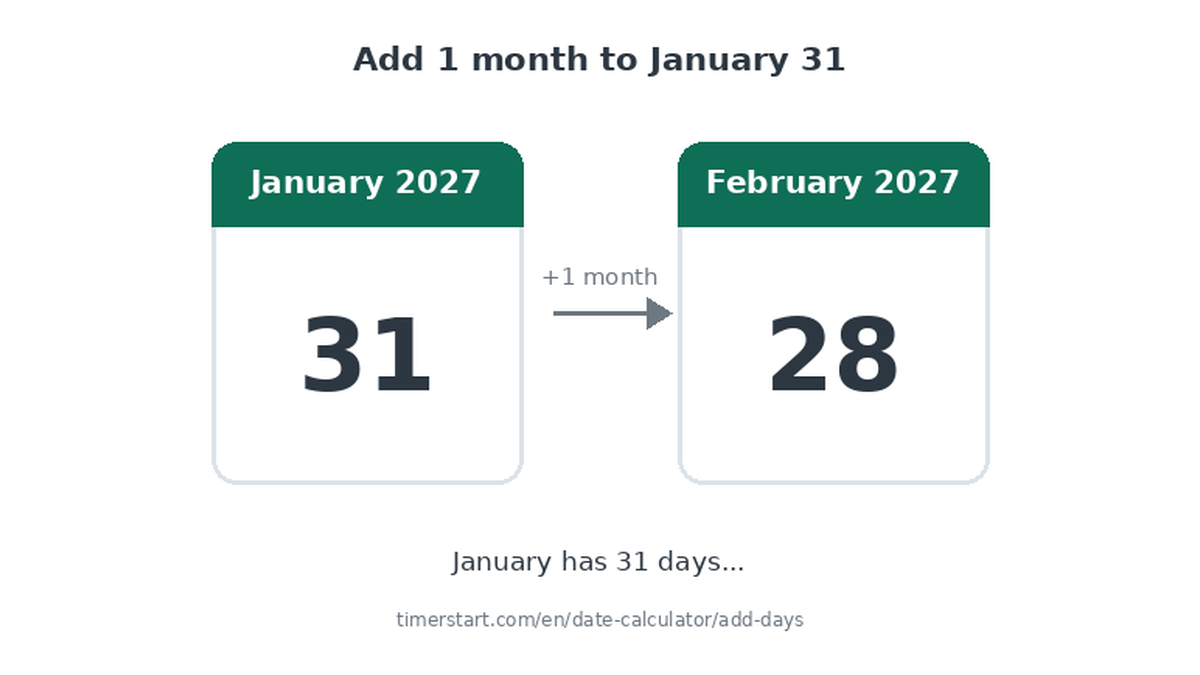
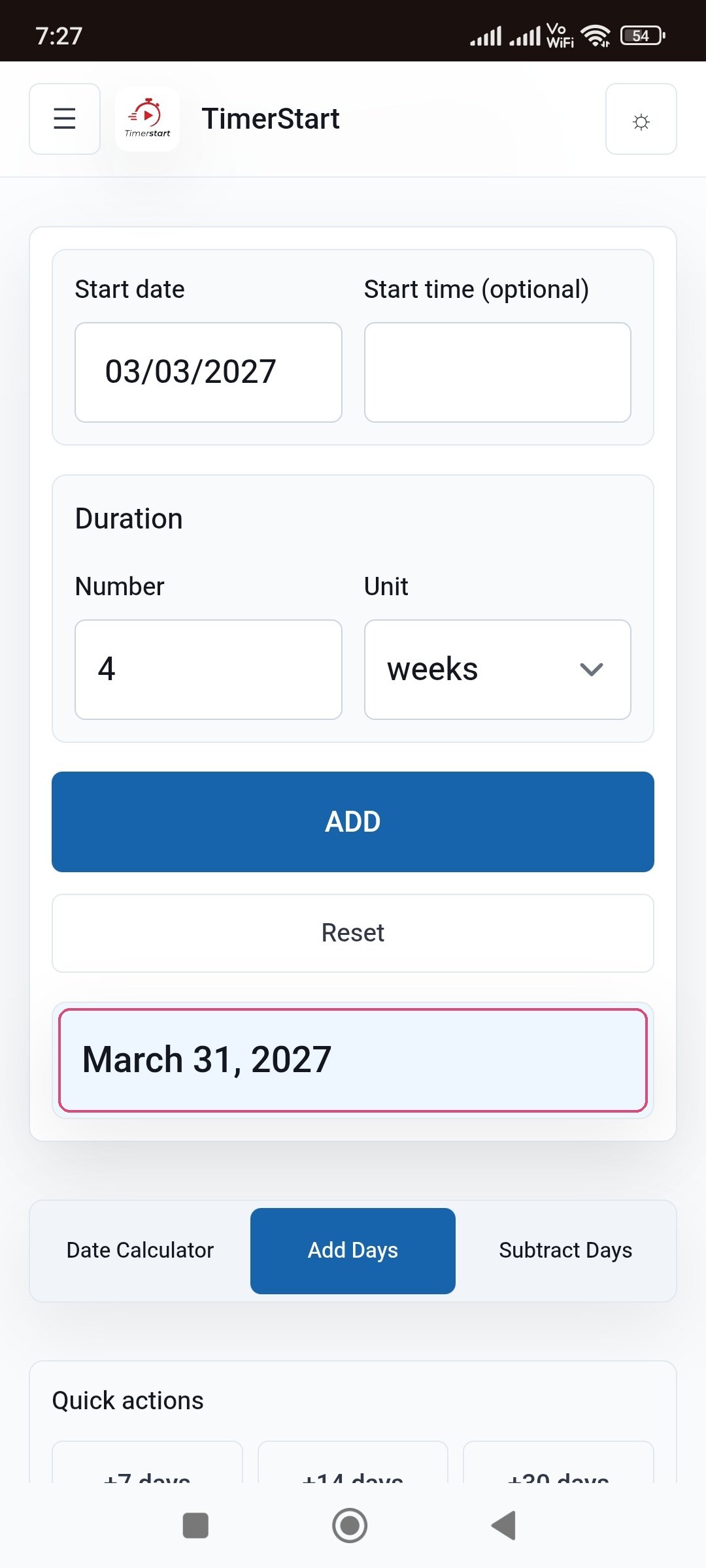
March 3 plus 4 weeks equals March 31. January 31, 2027 plus 1 month equals February 28, 2027. June 15, 2027 plus 2 years equals June 15, 2029. The result depends on both the unit you choose and the starting date.
Enter your starting date in TimerStart's Add Days Calculator, choose weeks, months, or years, and calculate the future date directly.
- Choose the starting date
- Enter the amount to add
- Select weeks, months, or years
- Calculate the result
- Check for a month-end or leap-year adjustment if relevant
Calculate a Future Date
Use TimerStart's Add Days Calculator to add weeks, months, or years from any starting date.
What You Need Before Adding a Calendar Duration
Do not convert one unit into another unless the original requirement allows it. If an instruction says three months, do not quietly treat that as 90 days - the calculator processes whichever unit you select, but it cannot decide which unit the original instruction actually meant.
- Starting date - the actual date from the schedule, policy, or milestone
- Duration amount - the exact number supplied
- Correct unit - weeks, months, years, or days
How to Use TimerStart to Add Weeks, Months, or Years
Open the Add Days Calculator, select your starting date, enter the amount, choose weeks, months, or years, calculate the result, and check whether a month-end adjustment occurred.
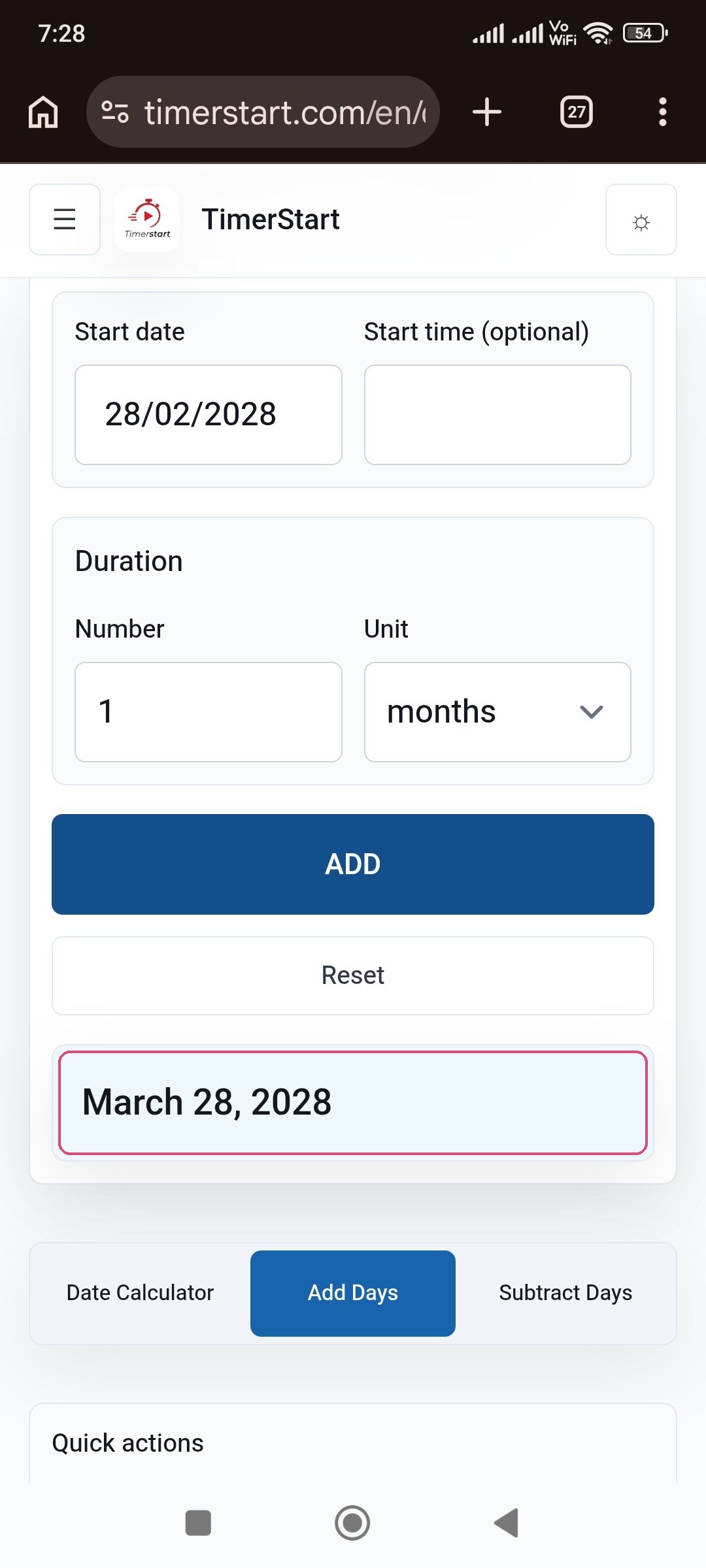
Fixed example: January 31, 2027 plus 1 month gives February 28, 2027 - a good one to try first, since it shows a confirmed and important month-end rule.
- Open the Add Days Calculator
- Select your starting date
- Enter the amount
- Choose weeks, months, or years
- Calculate the result
- Check whether a month-end adjustment occurred
Set Up the Add Days Calculator
Swipe or scroll through the setup steps.
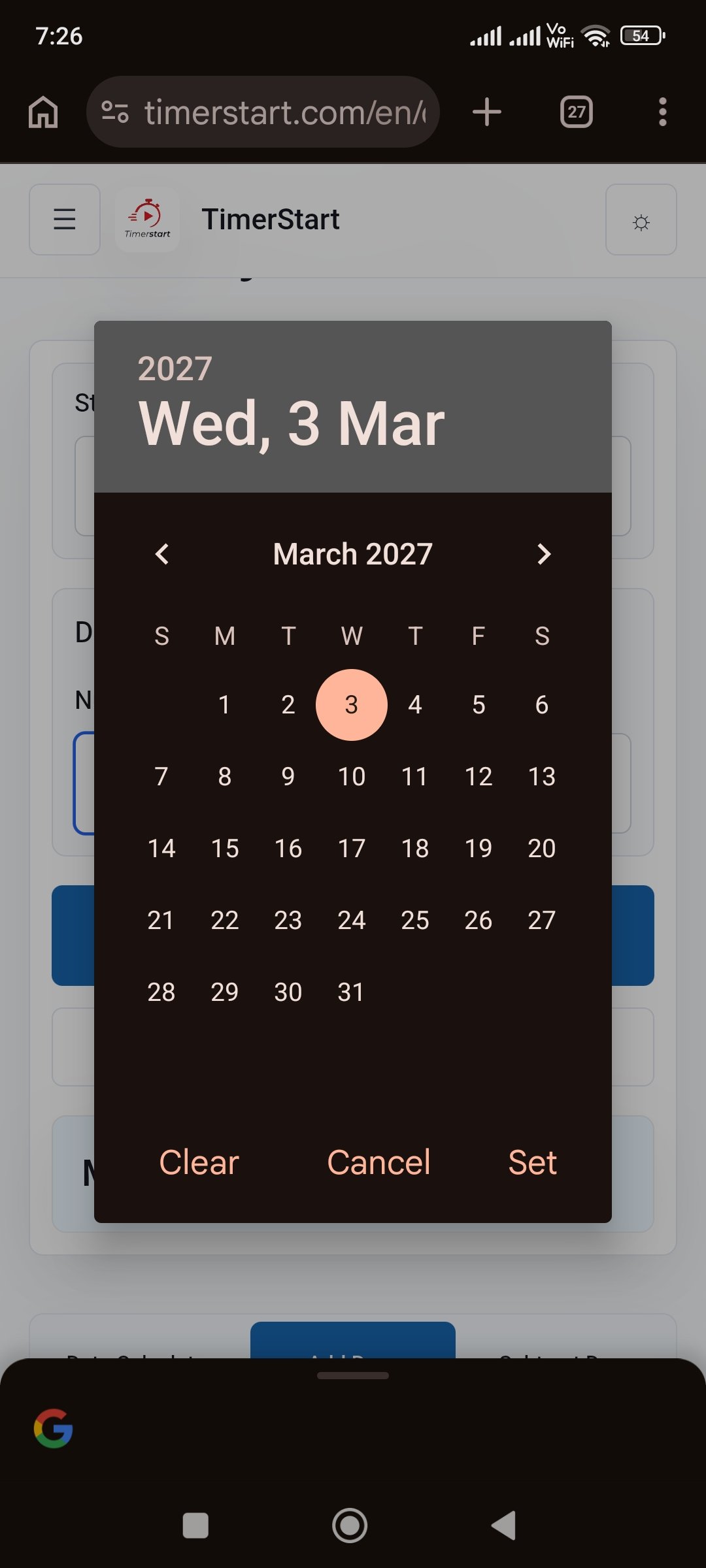
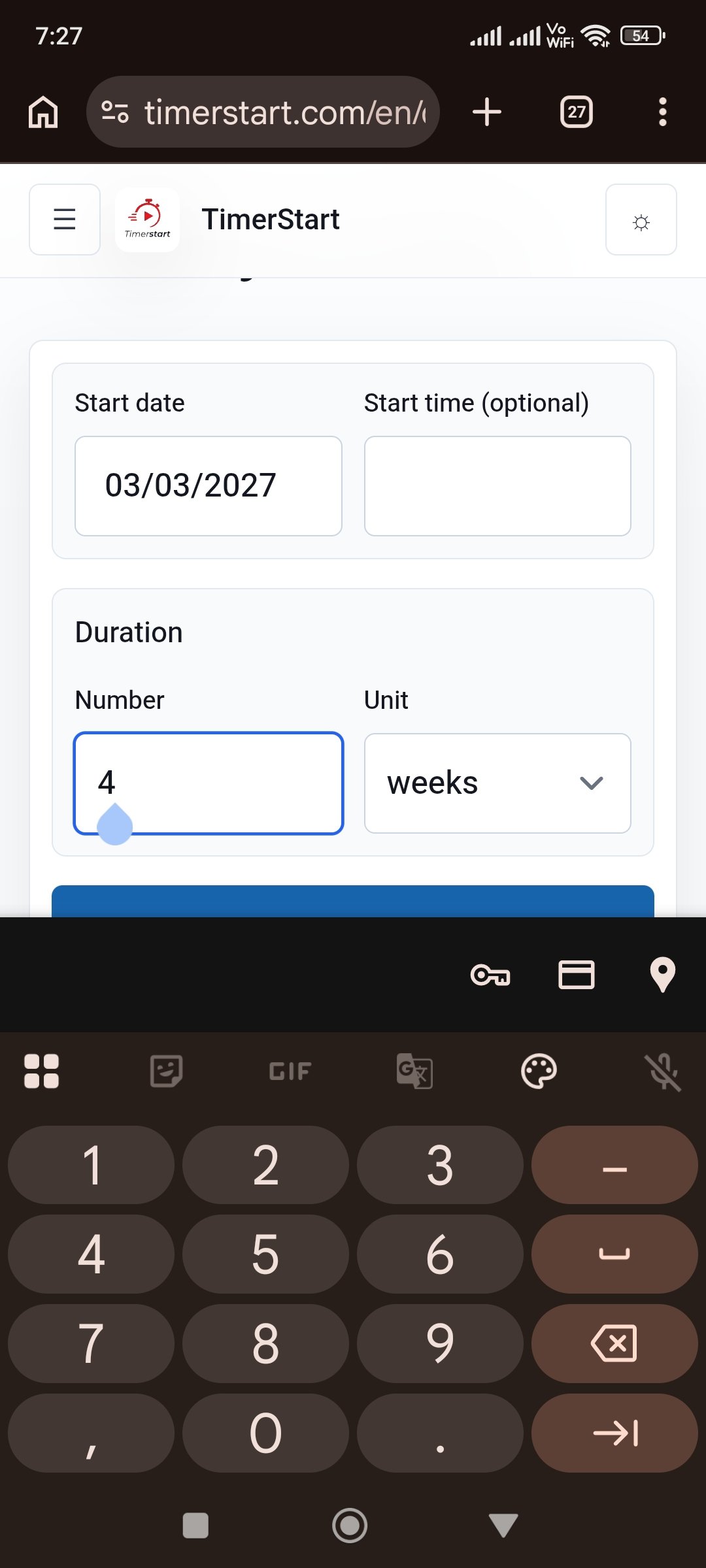
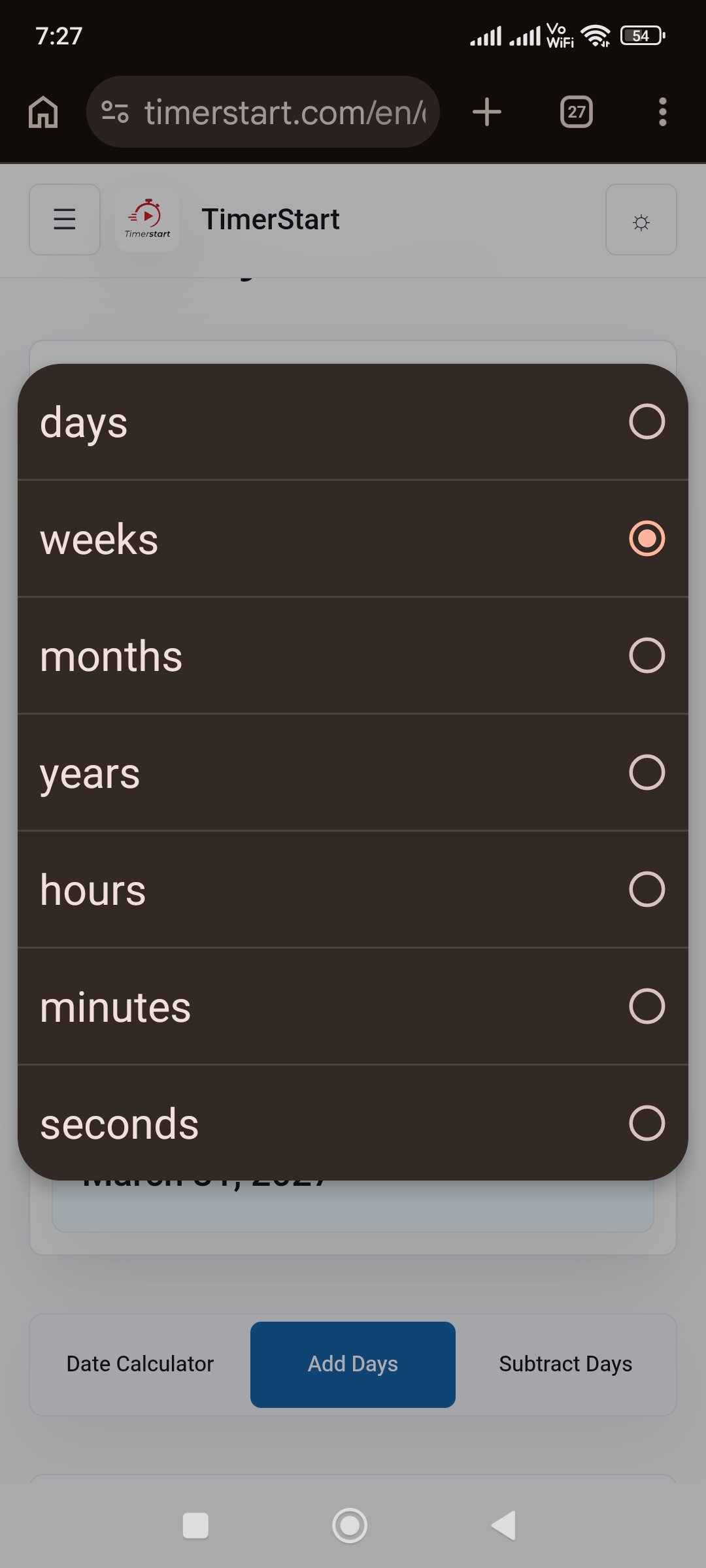
Watch: Add Weeks, Months, or Years to a Date
You can also watch the TimerStart tutorial on YouTube if the embedded video does not load.
How to Add Weeks to a Date
One week is seven calendar days. Multiply the number of weeks by seven to see the elapsed-day length, though the calculator handles that for you. The result can cross a month or year boundary, and the weekday normally stays the same after adding whole weeks.
Weeks are fixed seven-day periods - that is what makes them different from calendar months.
- March 3 + 4 weeks = March 31
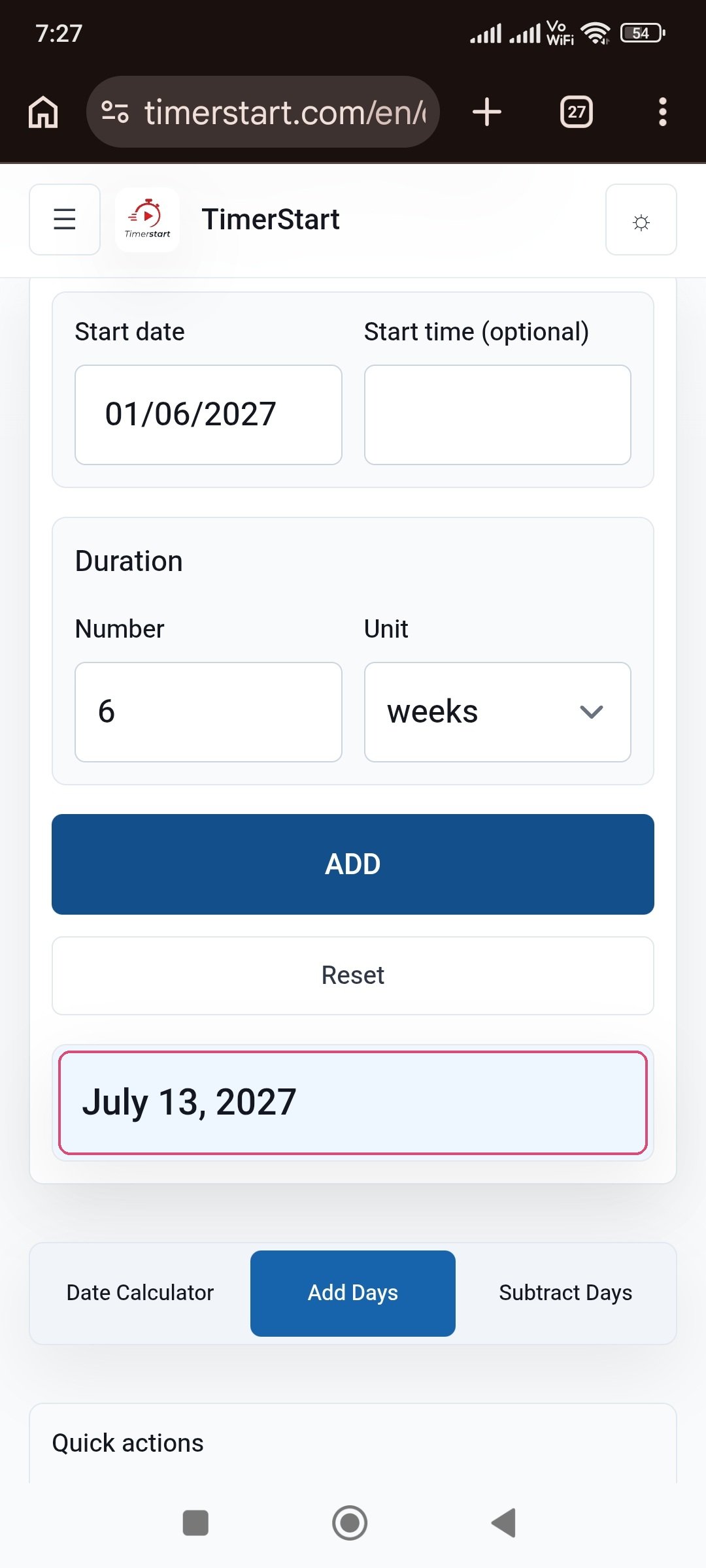
- June 1 + 6 weeks = July 13
- December 15, 2027 + 10 weeks = February 23, 2028
Adding Weeks Examples
Swipe or scroll through the week-based results.
How to Add Months to a Date
Adding months moves the date forward by that many calendar months, trying to preserve the original day number. Since month lengths vary, the result can land in a new year, and a shorter target month may not contain the original day at all - in that case, TimerStart uses the final valid date of the target month.
Adding a month means moving by a calendar month, not automatically adding 30 days.
- June 15 + 2 months = August 15
- October 20, 2027 + 4 months = February 20, 2028
- January 31, 2027 + 1 month = February 28, 2027
- January 31, 2028 + 1 month = February 29, 2028
What Happens When the Target Month Is Shorter?
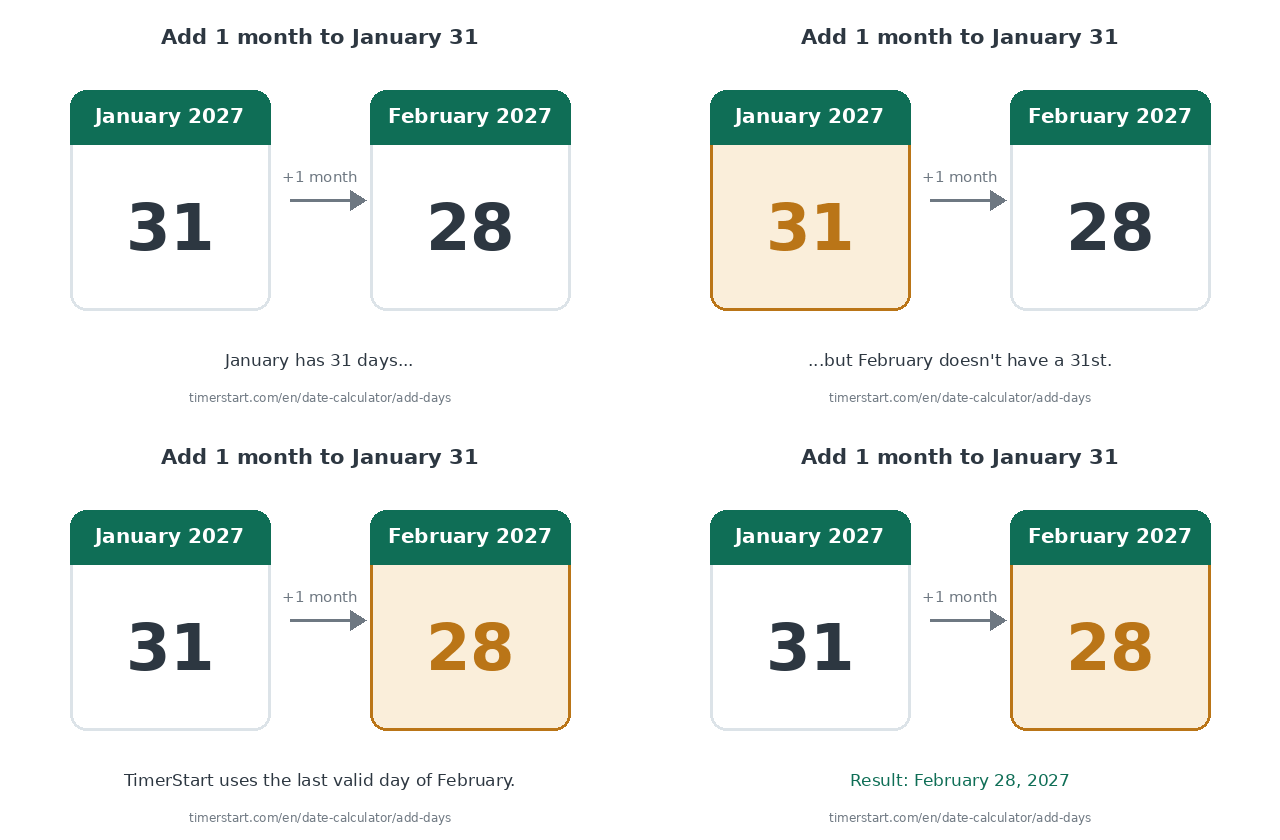
Months have 28, 29, 30, or 31 days, so the day you started on does not always exist a month or more later. When that happens, TimerStart's result is adjusted to the final valid day of the target month - not rounded, just adjusted to the closest real date.
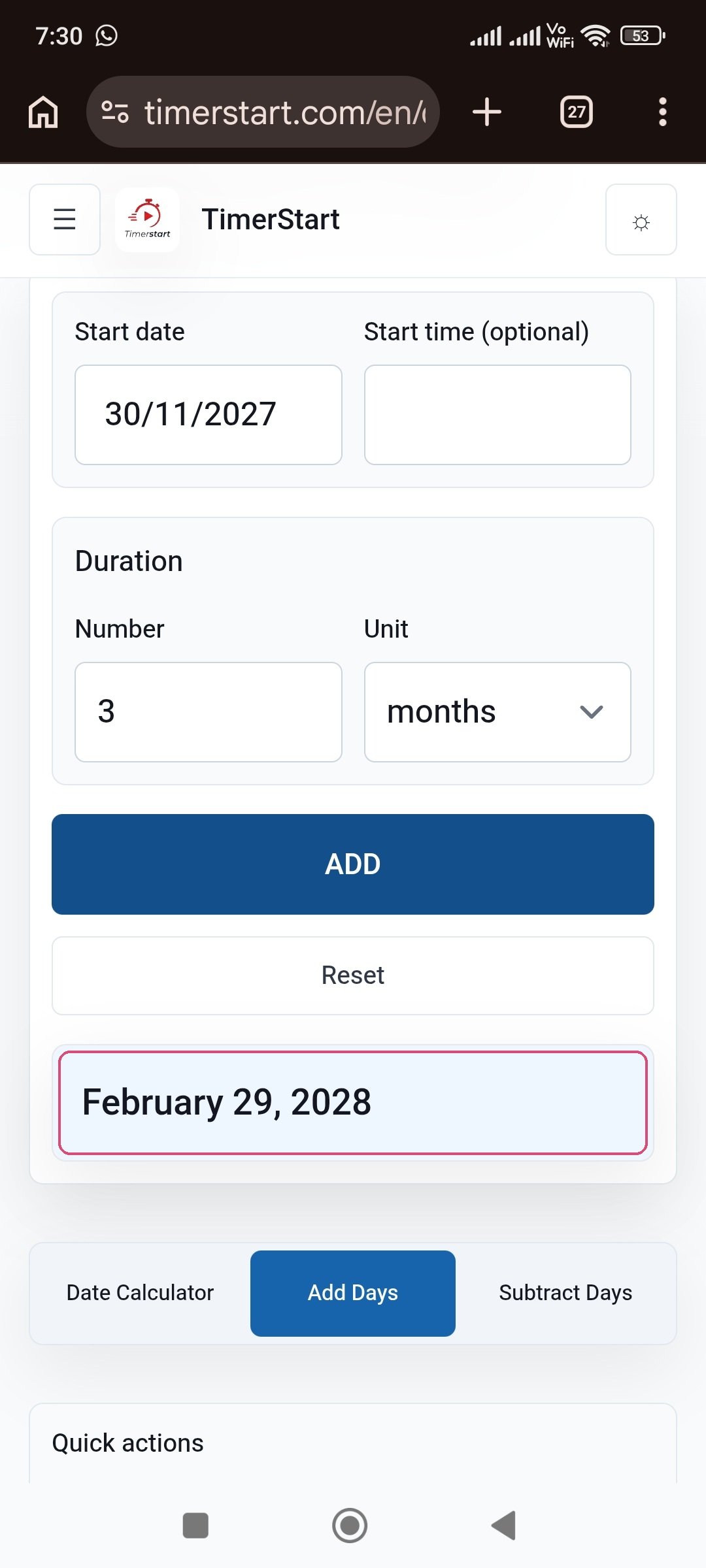
Confirmed pattern: January 31, 2026 plus 1 month becomes February 28, 2026. The same applies to January 31, 2027 plus 1 month (February 28, 2027), January 31, 2028 plus 1 month (February 29, 2028, since 2028 is a leap year), and November 30, 2027 plus 3 months (February 29, 2028).
Not every date calculator handles this the same way, so it is worth checking how any tool you use treats these edge cases.
How to Add Years to a Date
Adding years moves the calendar year forward while preserving the month and day where possible. The result can cross one or more leap years, and February 29 needs special handling since it does not exist every year.
Adding years is a calendar operation, not simply adding a fixed number of days.
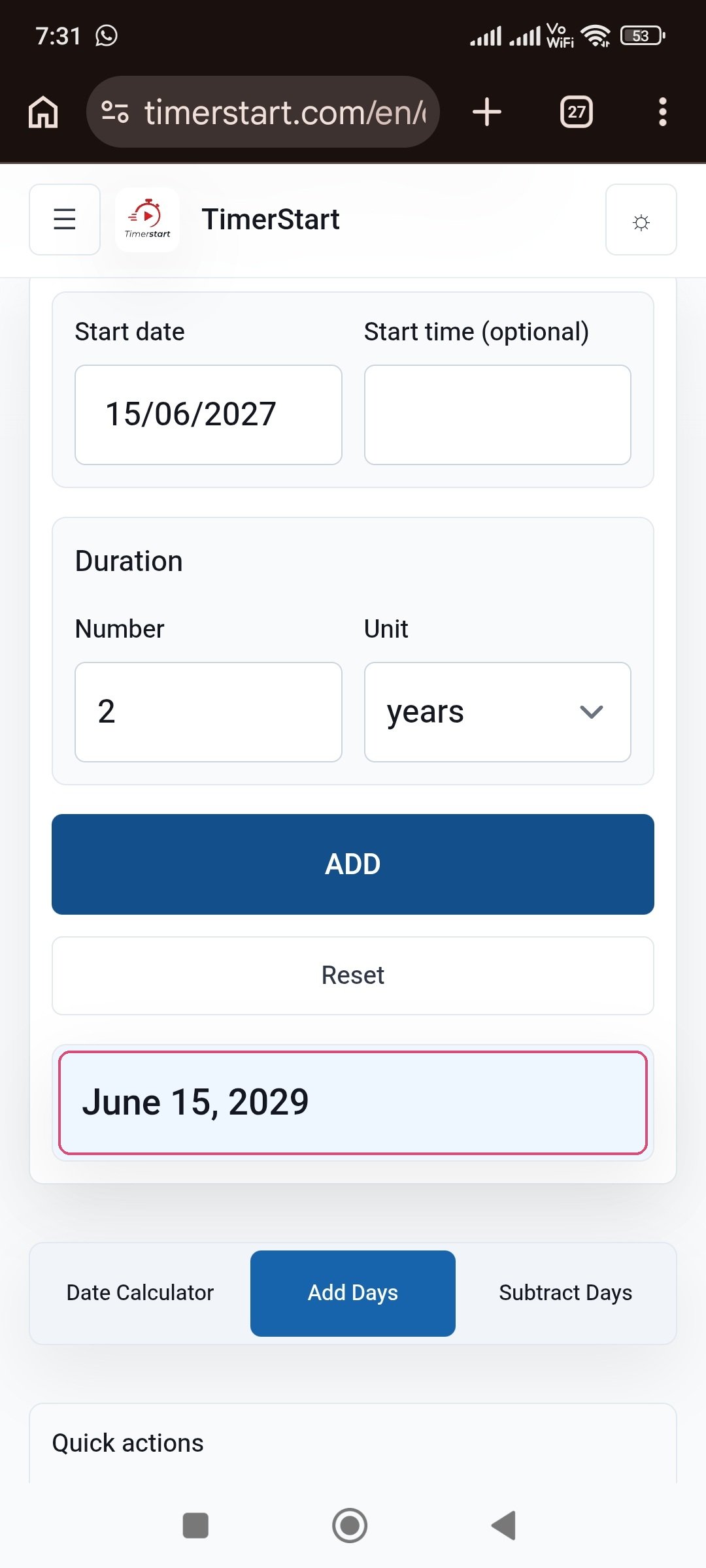
- June 15, 2027 + 2 years = June 15, 2029
- December 31, 2026 + 1 year = December 31, 2027
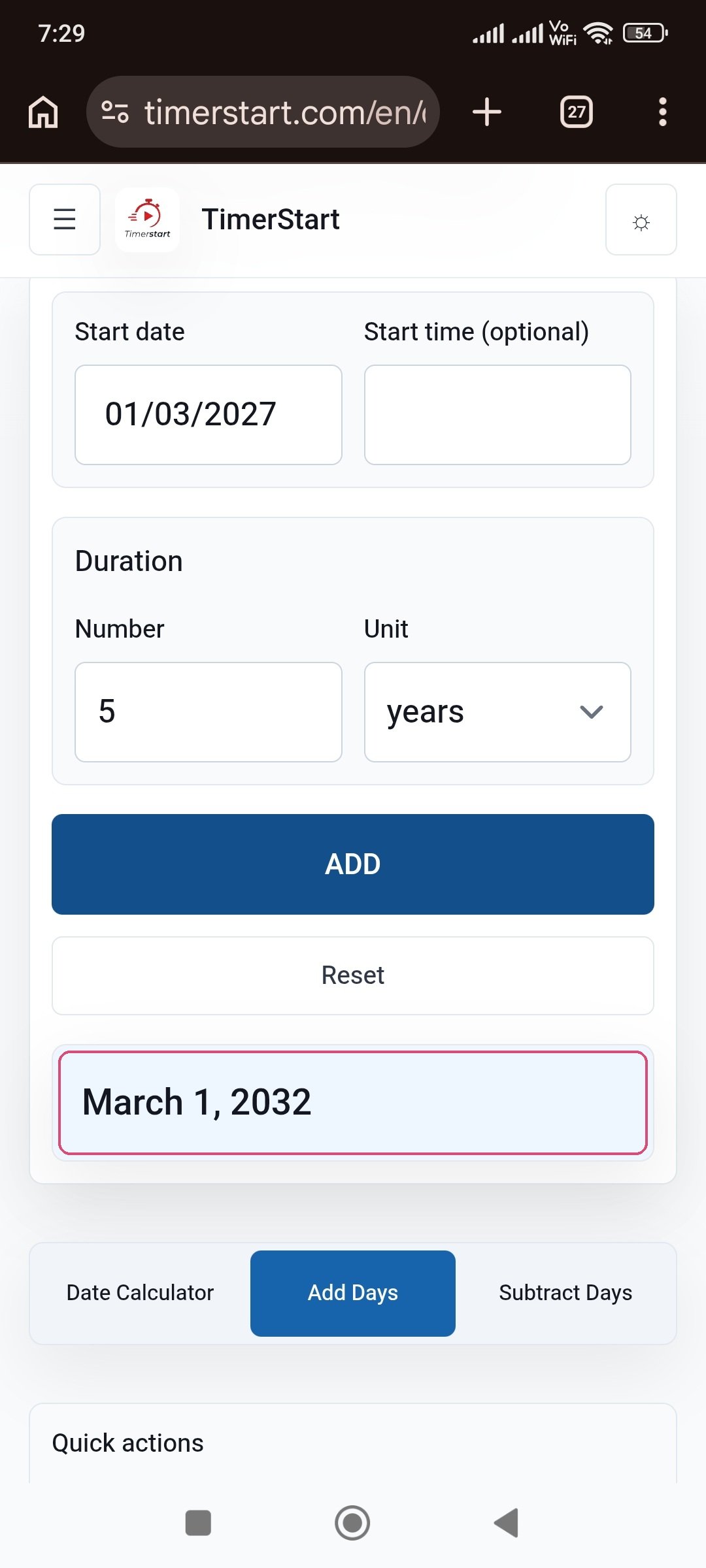
- March 1, 2027 + 5 years = March 1, 2032
Adding Years Examples
Swipe or scroll through the year-based results.
What Happens When You Add a Year to February 29?
February 29 only exists in leap years, so adding a year to it needs the same kind of adjustment as a month-end date. TimerStart uses the final valid day of February in the target year.
February 29, 2028 plus 1 year equals February 28, 2029, since 2029 is not a leap year. February 29, 2028 plus 4 years equals February 29, 2032, since 2032 is a leap year and the date lines up again. Whether the result lands on February 28 or February 29 depends entirely on whether the target year happens to be a leap year.
Weeks, Months, and Years Are Not Interchangeable
Four weeks is exactly 28 days, but a calendar month can be 28, 29, 30, or 31 days - so four weeks and one month rarely match exactly. Fifty-two weeks is 364 days, while a common year has 365 and a leap year has 366, so 52 weeks is not quite one calendar year either.
January 1, 2027 plus 52 weeks lands on December 31, 2027, while January 1, 2027 plus 1 year lands on January 1, 2028 - a one-day difference. When an instruction specifies a unit, use that exact unit rather than converting it to another one that seems close enough.
Is Adding 12 Months the Same as Adding One Year?
For most ordinary dates, yes: June 15, 2027 plus 12 months and June 15, 2027 plus 1 year both give June 15, 2028. But leap-day starting points deserve extra attention, and if you are combining several units in one calculation, the order they are applied in can matter. When in doubt, use the exact unit stated in the original requirement rather than assuming the two are always interchangeable.
Practical Uses
Weeks: project sprints, course schedules, follow-ups, trial periods. A six-week course starting June 1 finishes its sixth week on July 13.
Months: subscription renewals, lease reviews, project phases, warranty reminders. A review scheduled three months after November 30, 2027 lands on February 29, 2028, using TimerStart's month-end rule - not simply 90 days later.
Years: long-term renewals, certification reviews, anniversaries, multi-year milestones. A two-year review period starting June 15, 2027 falls due June 15, 2029. Contracts and official documents may define their own end date separately, so verify anything important with the relevant source.
Common Mistakes When Adding Weeks, Months, or Years
- Treating four weeks as one month, or 52 weeks as one year
- Assuming every month has 30 days or every year has 365
- Forgetting about February 29 in leap-year calculations
- Expecting January 31 plus one month to land on the 31st of the next month
- Selecting the wrong unit - days instead of weeks, or months instead of years
- Using an ambiguous date format like 01/31/2027 instead of January 31, 2027
- Assuming every calculator applies the same month-end rule
- Entering a negative value instead of using the Subtract Days tool
- Using a calendar result for an official deadline without checking the actual rule
Use TimerStart to Calculate a Future Date
Select your starting date, enter the amount, and choose weeks, months, or years in the Add Days Calculator. Check for a shorter target month or a leap-year adjustment, especially around February.
Moving backward instead? Use the Subtract Days Calculator. To compare two fixed dates, use the Date Calculator.
For fixed day counts rather than calendar units, see 30, 60, or 90 days from today or 120 or 180 days from today.
FAQs About Adding Weeks, Months, or Years
These answers cover common questions about adding weeks, months, or years to a starting date.
How do I add weeks to a date?
Each week moves the date forward exactly seven days, and the result can cross into a new month or year.
How do I add months to a date?
Move forward by that many calendar months; if the target month is shorter, the result adjusts to its final valid day.
How do I add years to a date?
Move the year forward while keeping the month and day, except for February 29, which adjusts if the target year is not a leap year.
Can I start from a date other than today?
Yes - choose any starting date first.
Is four weeks the same as one month?
No - four weeks is always 28 days, while a month can be 28 to 31 days.
Is 52 weeks the same as one year?
Not exactly - 52 weeks is 364 days, one day short of a common year.
Is adding 12 months the same as adding one year?
Usually, for ordinary dates - but verify leap-day cases separately.
What happens when I add one month to January 31?
It lands on February 28, or February 29 in a leap year, since January 31 does not exist in February.
What happens when I add one year to February 29?
It lands on February 28 unless the target year is also a leap year.
Does adding weeks include weekends?
Yes - weeks move through the calendar continuously.
Does the calculator account for leap years?
Yes, for both month and year calculations involving February.
Can I add weeks, months, and years together?
Depends on the tool's interface - check, or calculate them separately.
Can I enter a negative number?
No - use the Subtract Days Calculator instead.
Can I use the result for an official deadline?
Use it as a starting point, but confirm anything high-stakes with the relevant document or authority.
Related Reading
For more date-calculator guidance, read which date calculator unit to use, how to add days to a date without counting manually, how to add hours, minutes, or seconds to a date and time, 30, 60, or 90 days from today, and 120 or 180 days from today.