

How to Add Hours, Minutes, or Seconds to a Date and Time
Adding a few hours to a date sounds simple until the clock rolls past midnight and you're not sure what day it is anymore. Add minutes or seconds on top, and it's easy to lose track. Here's how to add time to a date correctly, and what to check when the calculation crosses a clock or calendar boundary.
Quick Answer: How to Add Time to a Date
Choose the starting date, enter the starting time, enter the number of hours, minutes, or seconds to add, run the calculation, and check both the resulting date and the resulting time.
The result can stay on the same date, or move into the next day, month, or year.
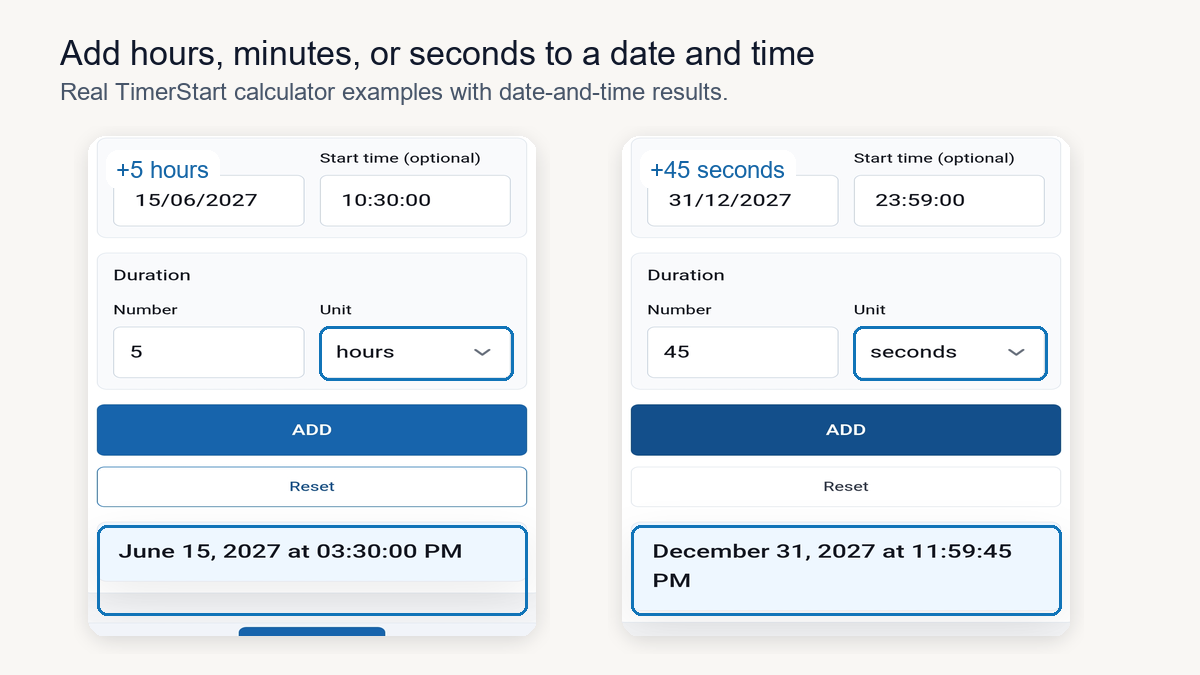
June 15 at 10:30 AM plus 5 hours equals June 15 at 3:30 PM. June 15 at 11:45 PM plus 30 minutes equals June 16 at 12:15 AM - same duration, but the date changes.
Enter your starting date and time in TimerStart's Add Days Calculator, choose your unit, and let it handle the rollover.
Add Time to a Date Instantly
Use TimerStart's Add Days Calculator to enter a starting date and time, choose hours, minutes, or seconds, and check the future date and time.
Watch a Quick Walkthrough
What You Need Before Adding Time
Before you calculate, make sure the inputs are the ones you actually mean. A calculator processes these values instantly, but it can't fix a starting time that was wrong to begin with.
- Starting date - the actual date from the appointment, shift, or event
- Starting time - don't round this if the result needs to be precise
- Duration - the exact number to add
- Correct unit - hours, minutes, or seconds
- AM or PM - confirm morning or evening
- Local time or another time zone - check what the calculation is based on
How to Use TimerStart to Add Hours, Minutes, or Seconds
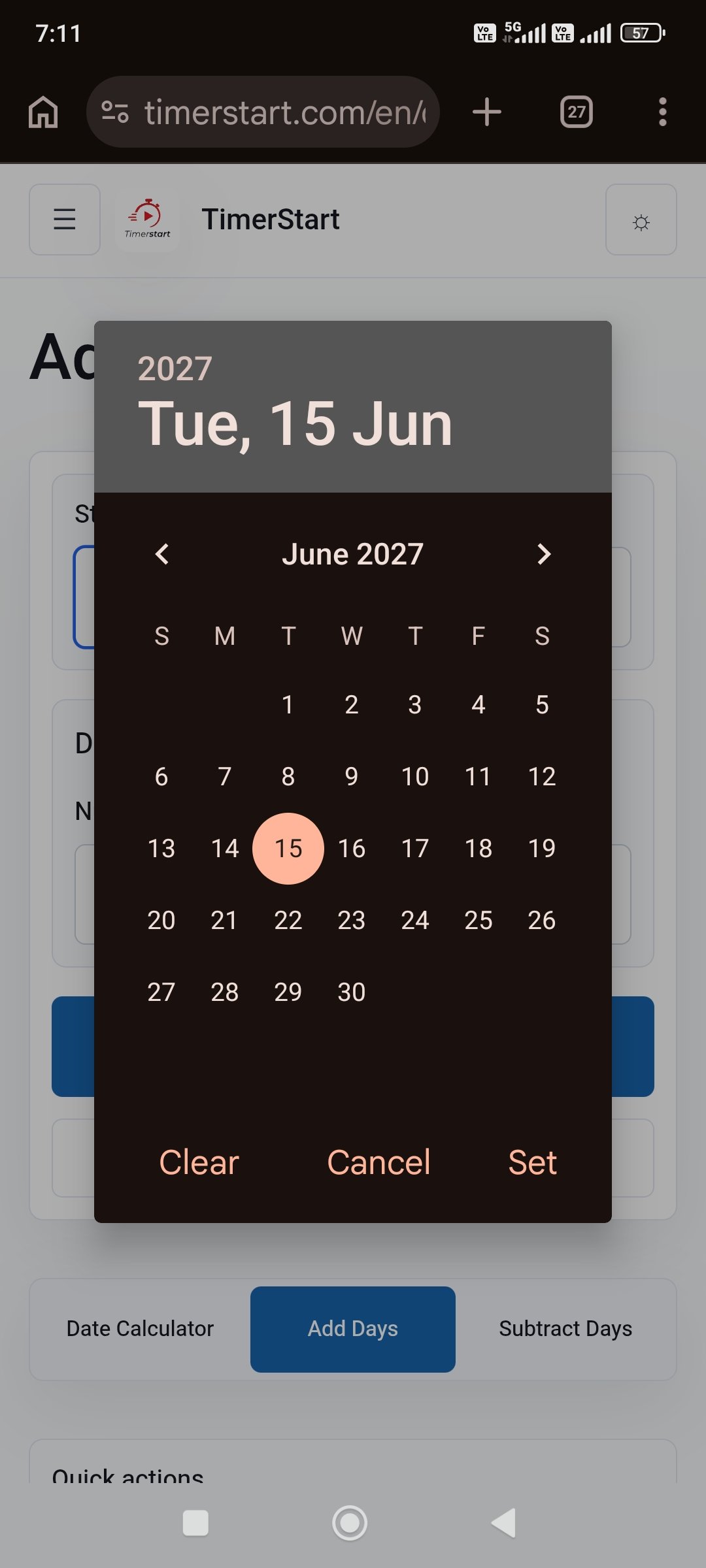
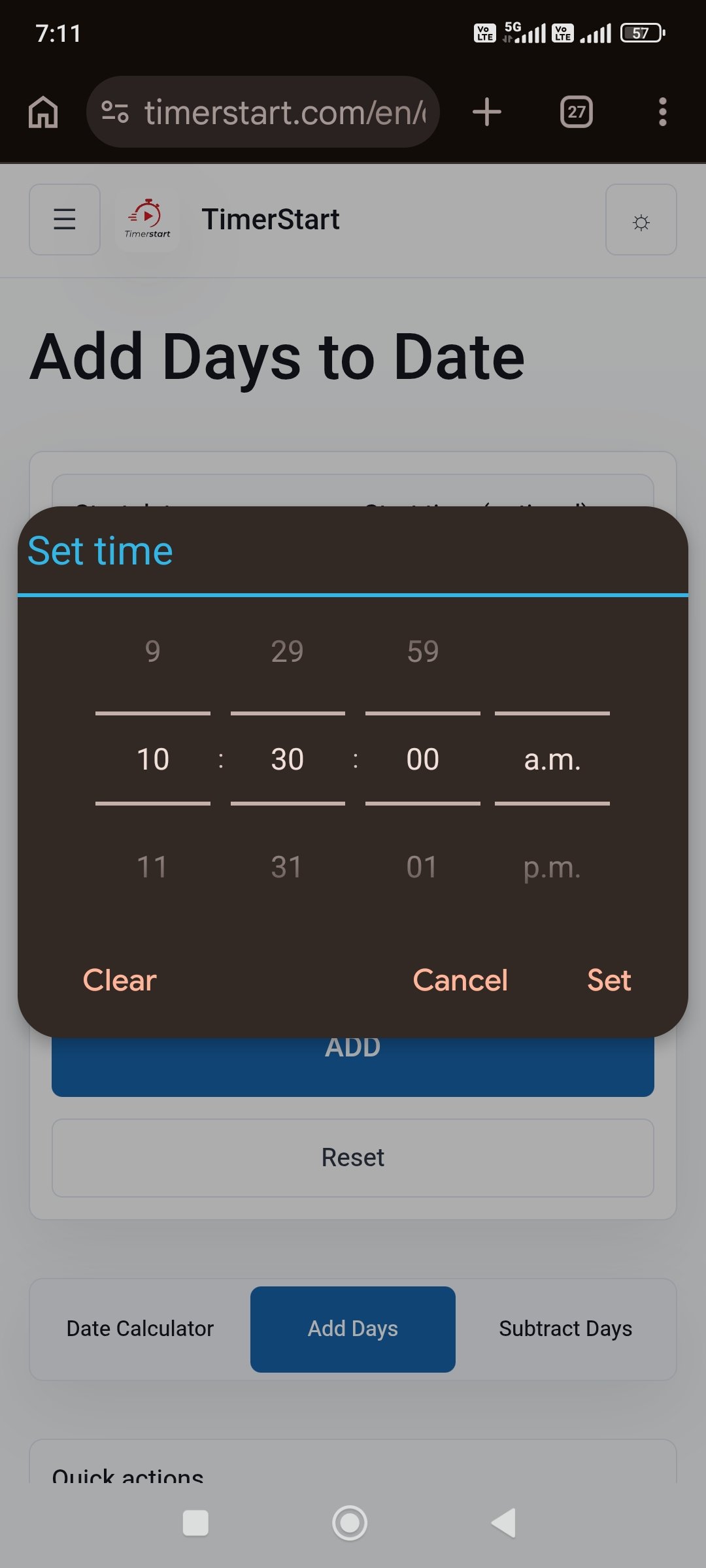
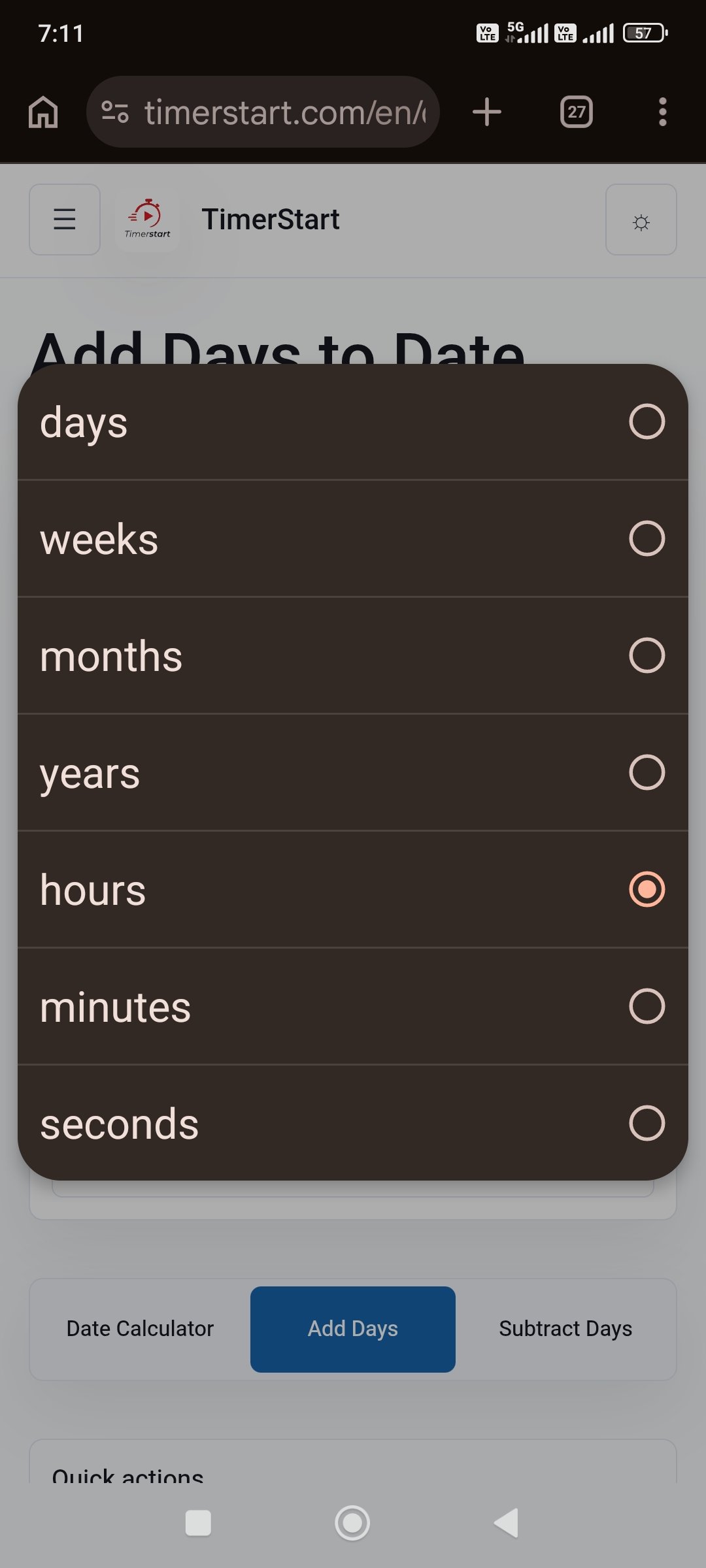
Open the Add Days Calculator, select your starting date and time, enter the amount to add, select hours, minutes, or seconds, calculate, and review the resulting date and time.
Fixed example: August 15, 2026 at 8:15 AM plus 6 hours gives August 15, 2026 at 2:15 PM.
Add Time in TimerStart
Swipe or scroll to view the Add Days calculator date, time, unit, number, and result steps.
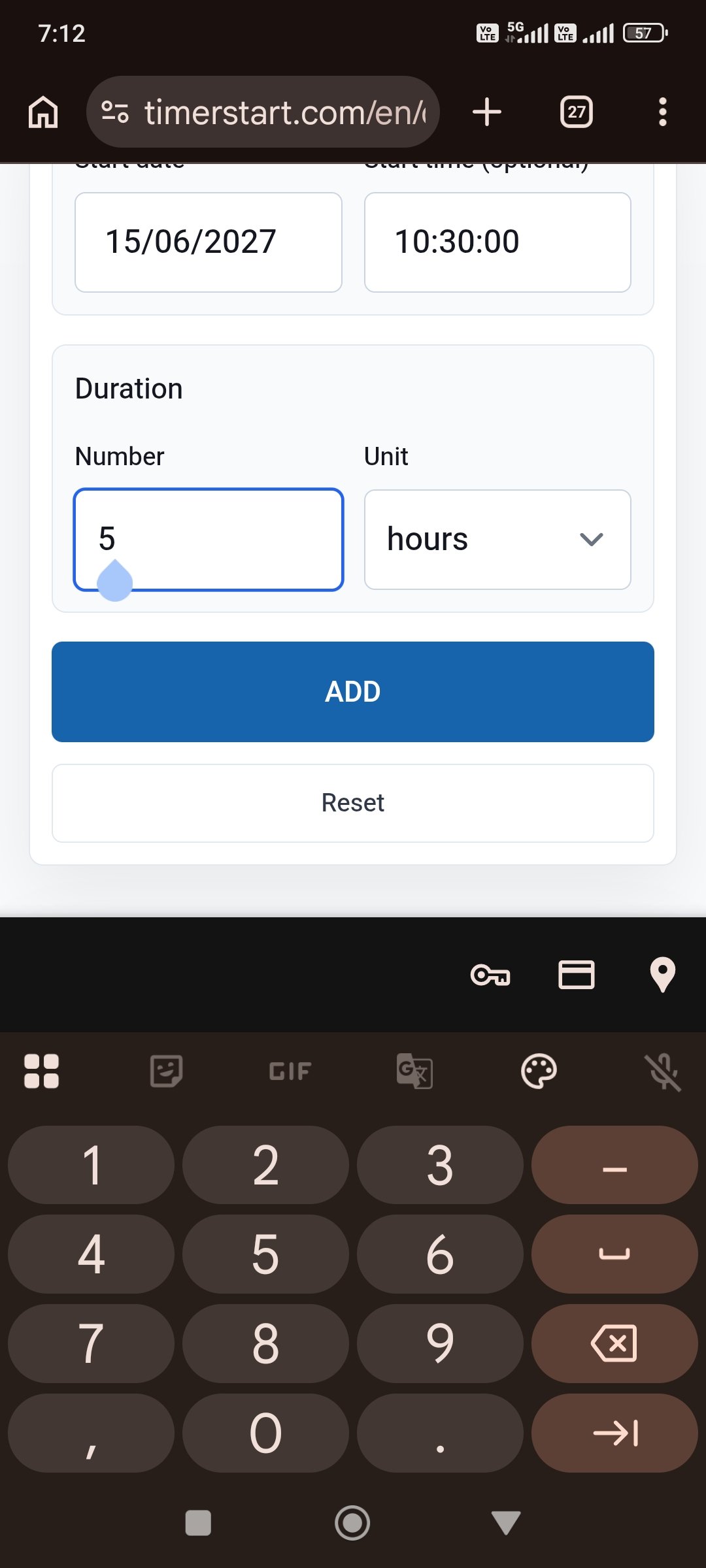
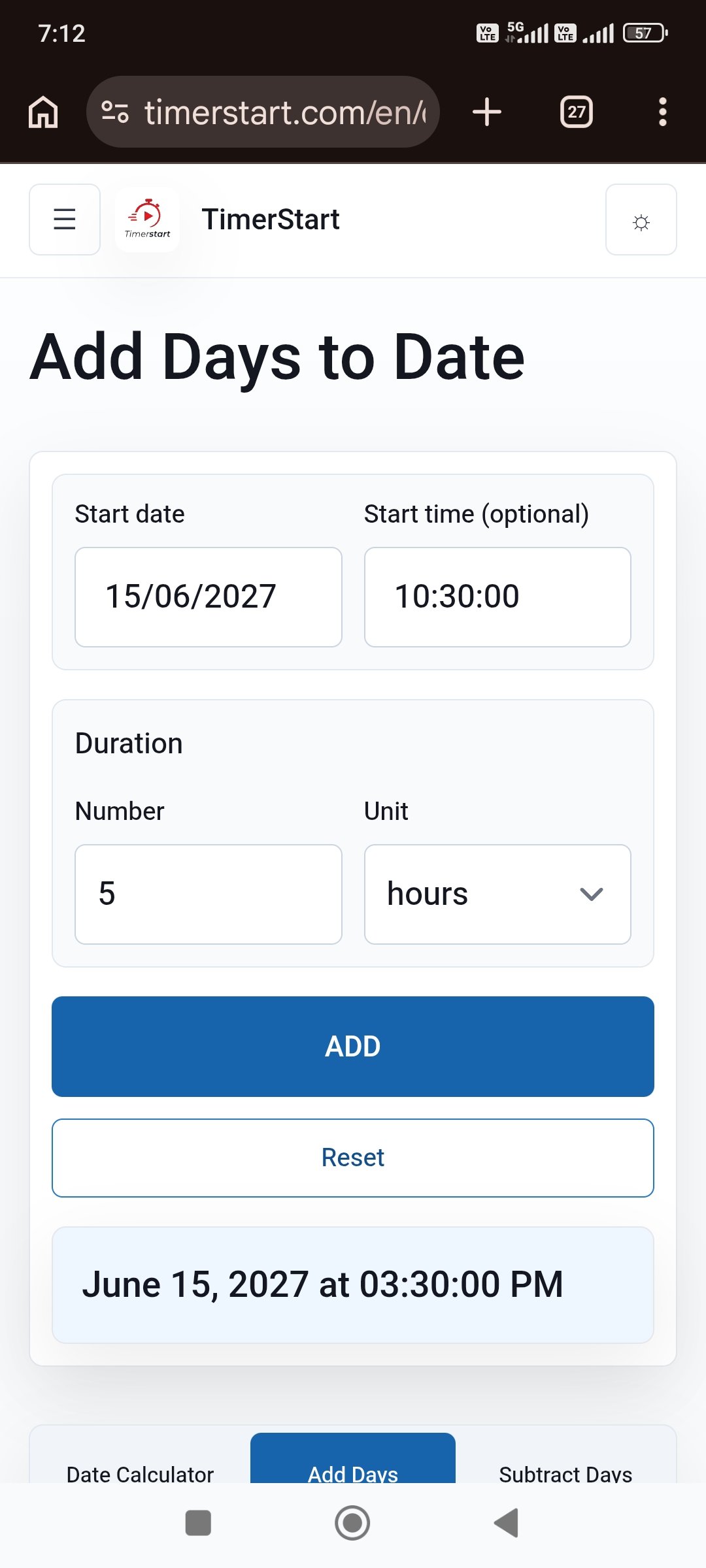
How to Add Hours to a Date and Time
Move forward from the given date and time by the stated number of hours. Even a small number of hours can push the result past midnight.
Adding hours isn't only clock arithmetic - the date can move too.
- June 15 at 10:30 AM + 5 hours = June 15 at 3:30 PM (same day)
- June 15 at 10:30 PM + 5 hours = June 16 at 3:30 AM (next day)
- February 28, 2027 at 11:30 PM + 2 hours = March 1, 2027 at 1:30 AM (new month)
How to Add Minutes to a Date and Time
Every complete 60 minutes moves the clock forward by an hour, which can carry the result past noon, midnight, or into a new date.
- June 15 at 2:20 PM + 35 minutes = June 15 at 2:55 PM
- June 15 at 11:45 PM + 30 minutes = June 16 at 12:15 AM
- November 30, 2027 at 11:45 PM + 30 minutes = December 1, 2027 at 12:15 AM
How to Add Seconds to a Date and Time
Every complete 60 seconds moves the time forward by a minute, and the result can still shift the hour or date. This precision is useful for timestamps, short countdowns, or logging an exact future moment.
- June 15 at 10:30:20 AM + 45 seconds = June 15 at 10:31:05 AM
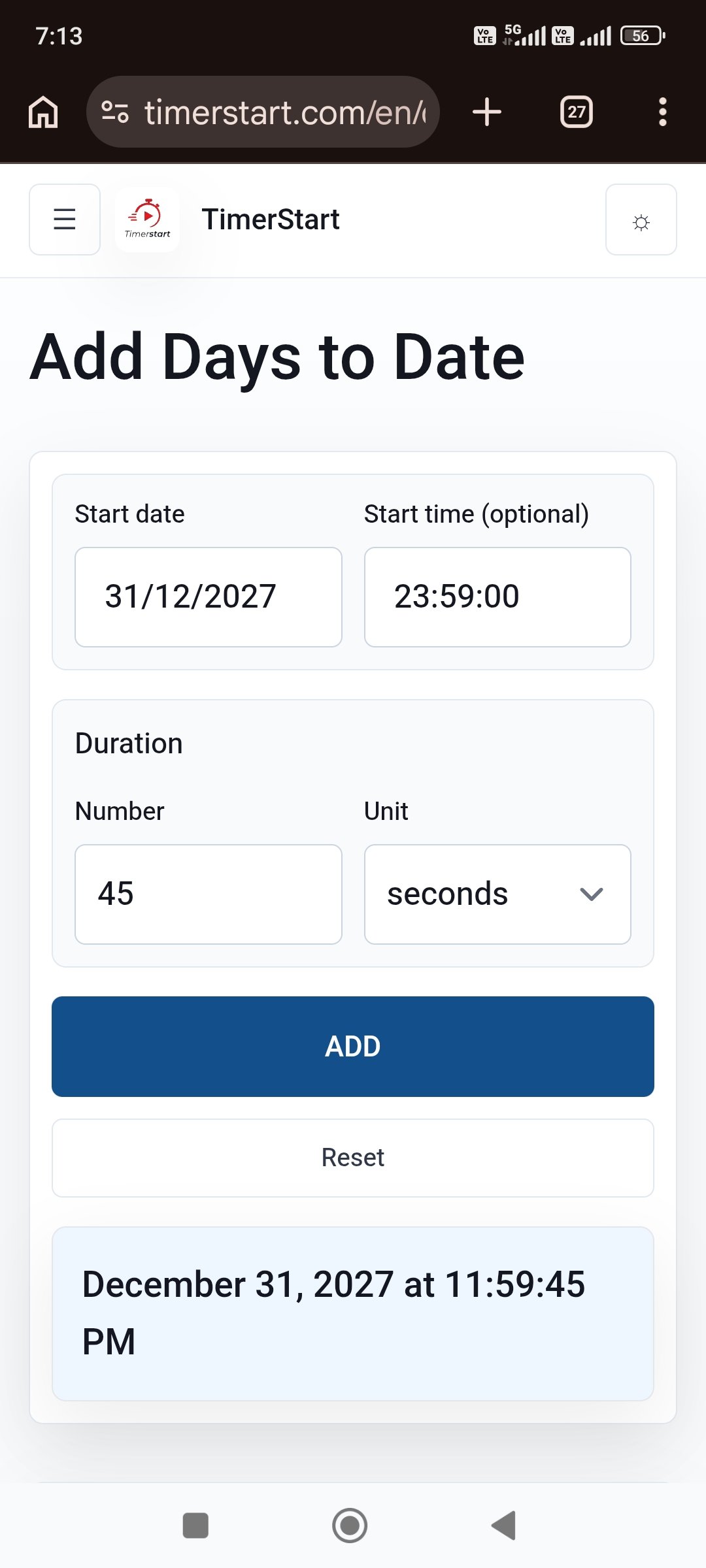
- December 31, 2027 at 11:59:30 PM + 45 seconds = January 1, 2028 at 12:00:15 AM
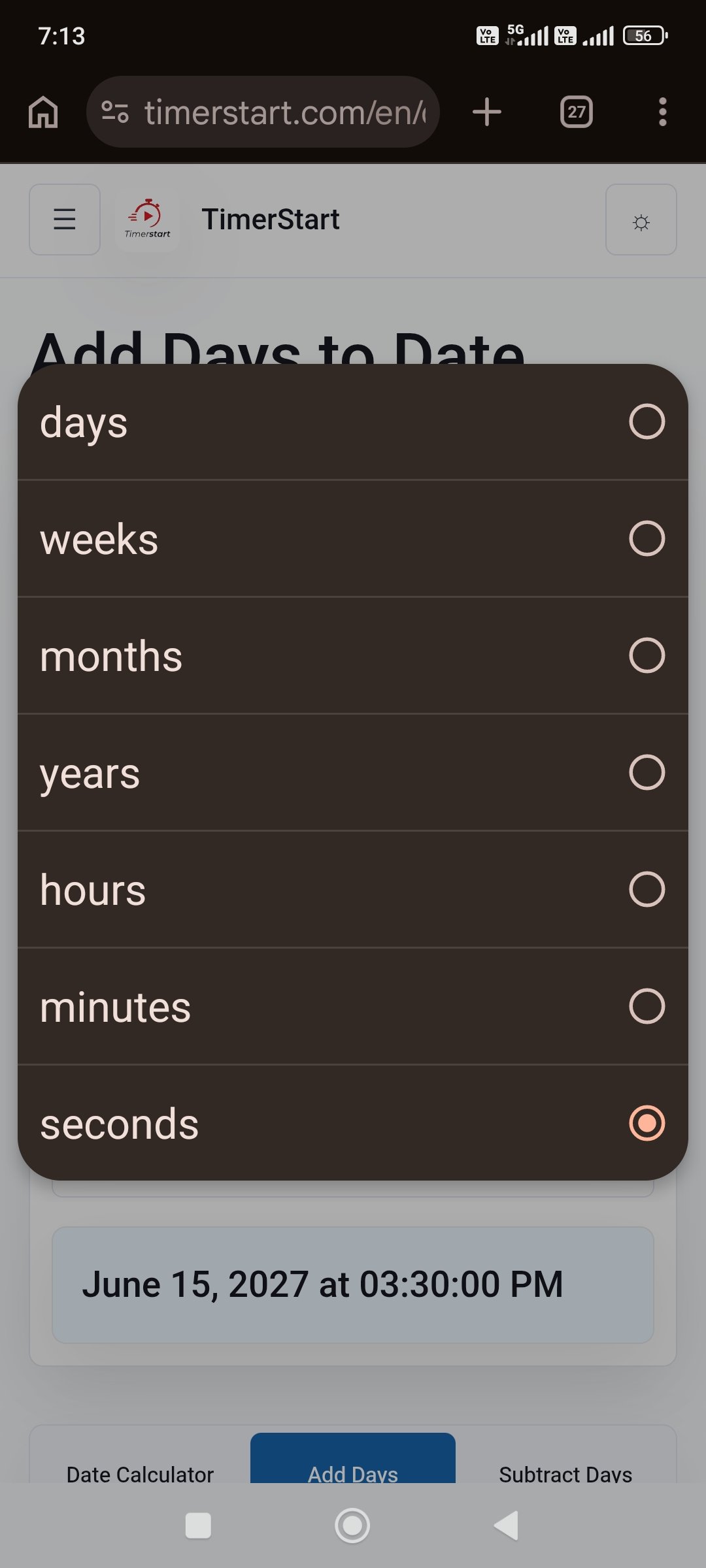
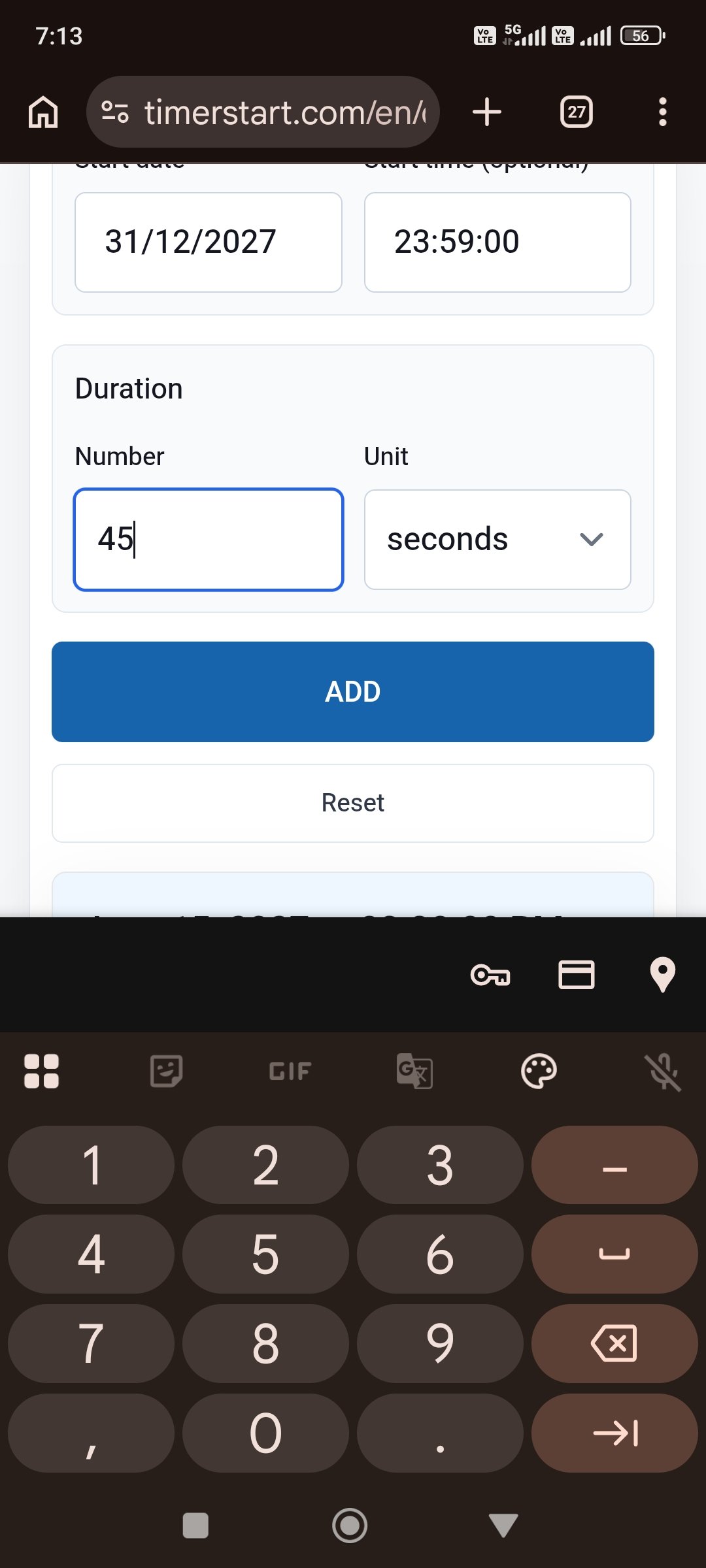
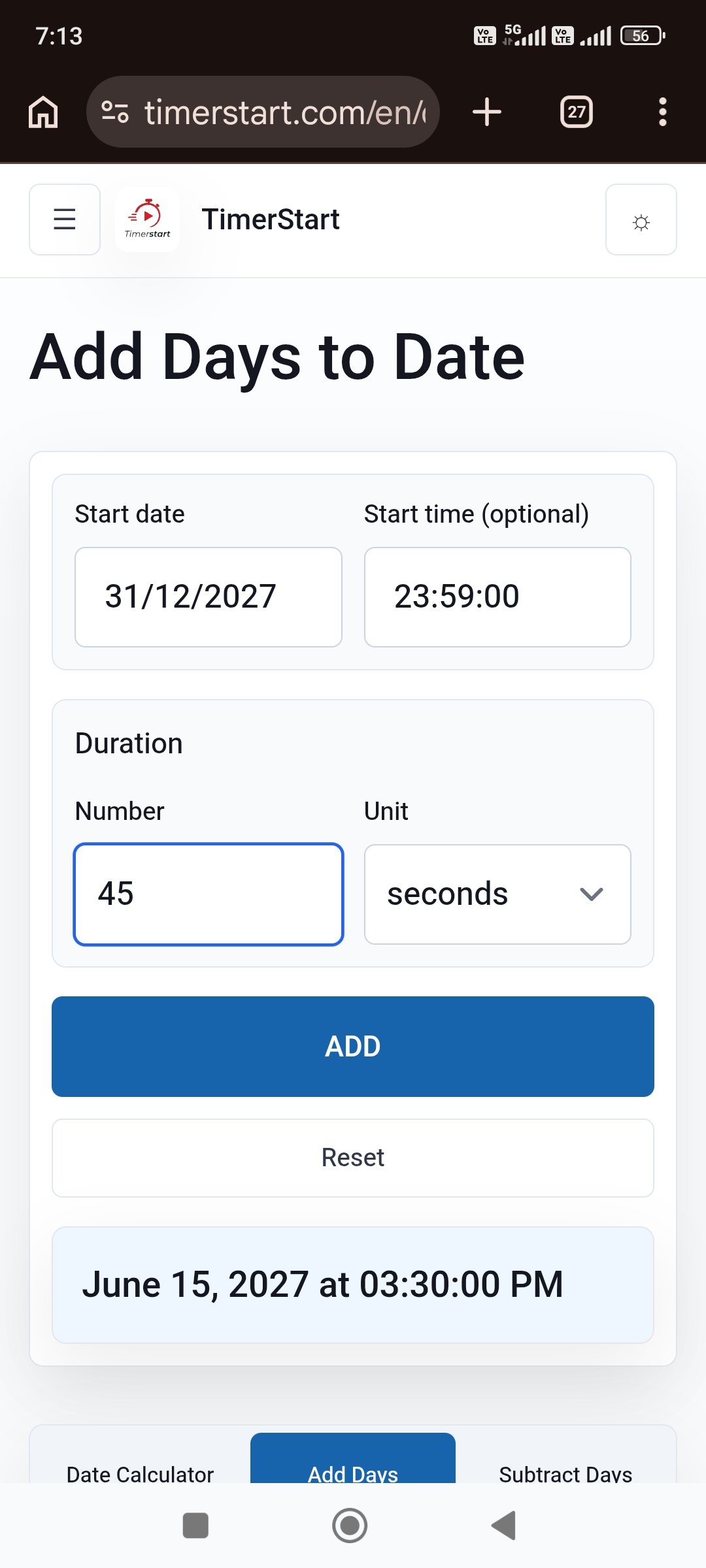
Adding Seconds Example
Swipe or scroll to view the second example and unit selector screenshots.
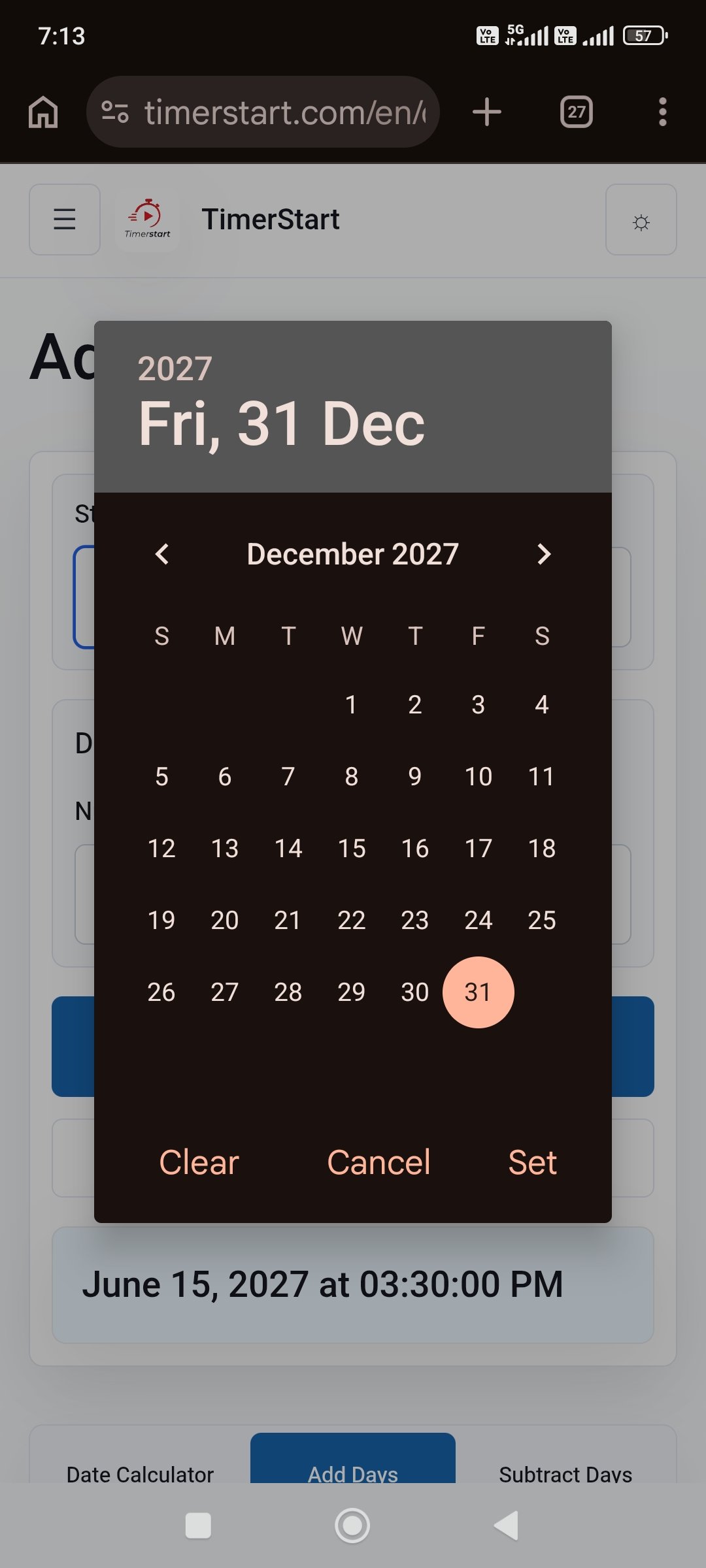
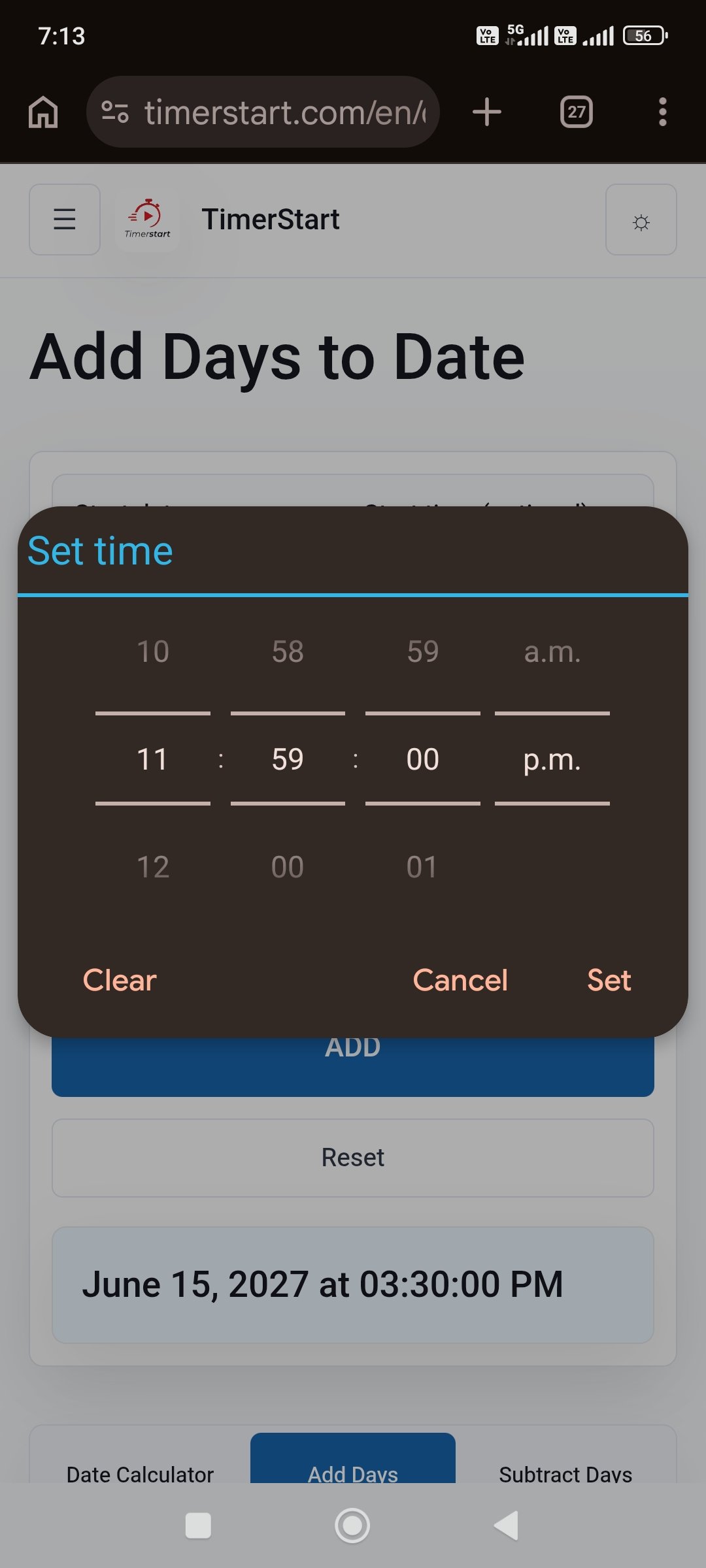
What Happens When the Calculation Crosses Midnight?
Midnight starts a new calendar date. 11:45 PM plus 30 minutes isn't "11:75 PM" - it's 12:15 AM the next day, and the month or year can shift too. Always review the whole result, not just the clock time.
- Ordinary: June 15 at 11:45 PM + 30 minutes = June 16 at 12:15 AM
- Month boundary: November 30, 2027 at 11:45 PM + 30 minutes = December 1, 2027 at 12:15 AM
- Year boundary: December 31, 2027 at 11:59:30 PM + 45 seconds = January 1, 2028 at 12:00:15 AM
How Minute and Second Carryover Works
60 seconds become one additional minute. 60 minutes become one additional hour. Passing midnight moves the result into the next calendar date.
If TimerStart supports combining units in one calculation, adding 1 hour, 50 minutes, and 40 seconds to July 20 at 2:10:20 PM gives July 20 at 4:01:00 PM. If it only accepts one unit at a time, run each addition separately and combine the results yourself.
12-Hour Time vs 24-Hour Time
12-hour format uses AM and PM. 12:00 AM is midnight, and 12:00 PM is noon. 24-hour format runs 00:00 to 23:59, where 00:00 is midnight and 23:00 is 11:00 PM.
10:00 PM plus 5 hours equals 3:00 AM the next day, or 22:00 plus 5 hours equals 03:00 in 24-hour format. The most common mistake is entering 8:00 AM when you meant 8:00 PM, so double-check which one you intended.
Adding Time Across Days, Months, and Years
Short time additions can still cross calendar boundaries when the starting time is close to midnight.
- Day boundary: June 15 at 11:45 PM + 30 minutes = June 16 at 12:15 AM
- Month-end (non-leap year): February 28, 2027 at 11:30 PM + 2 hours = March 1, 2027 at 1:30 AM
- Leap year: February 28, 2028 at 11:30 PM + 2 hours = February 29, 2028 at 1:30 AM
- Year boundary: December 31, 2027 at 11:40 PM + 30 minutes = January 1, 2028 at 12:10 AM
Is Adding 24 Hours the Same as Adding One Day?
For most ordinary calculations, yes. But a calendar day means moving to the corresponding local date, while 24 hours is a fixed elapsed duration - and these can diverge around a daylight-saving clock change, where a local day may not contain exactly 24 elapsed hours. Away from a clock change, the two usually line up; if your period crosses a daylight-saving transition or time-zone change, verify separately.
Local Time, Time Zones, and Daylight Saving Time
A browser-based calculator typically works from your device's local date and time - that's not the same as a time-zone conversion. Adding hours in one location doesn't show the corresponding time elsewhere, and daylight-saving transitions can change the local UTC offset. For international appointments or anything tied to another time zone, confirm the result with a dedicated time-zone-aware tool.
Practical Uses
Hours: shift end times, appointments several hours out, project handoffs, equipment bookings. A shift starting June 15 at 9:00 AM and lasting 8 hours ends June 15 at 5:00 PM. This does not account for unpaid breaks unless built into the duration.
Minutes: appointment buffers, meeting end times, travel connections, cooking reminders.
Seconds: precise event timestamps, media production, technical testing.
TimerStart is a general-purpose calculator, not a certified tool for medical, industrial, scientific, or professional sports timing.
Common Mistakes When Adding Time to a Date
Input mistakes
- Entering the wrong starting date or time
- Mixing up AM and PM, or treating 12:00 AM as noon
- Using an ambiguous format like 06/15/2027 instead of June 15, 2027
Carryover mistakes
- Forgetting that 60 minutes creates another hour, or 60 seconds another minute
- Checking only the resulting time and missing that the date changed
- Assuming 24 hours always equals one calendar day, even around a clock change
Context mistakes
- Confusing time addition with time-zone conversion
- Relying on an unverified result for a genuinely critical deadline
Use TimerStart to Calculate a Future Date and Time
Start with your date and time, add the hours, minutes, or seconds you need in the Add Days Calculator, and check both the resulting date and time - including AM or PM.
Verify separately for anything crossing a time zone or daylight-saving transition. Moving backward instead? Use the Subtract Days Calculator. For broader date comparisons, use the Date Calculator.
FAQs About Adding Time to a Date
These answers cover common questions about adding hours, minutes, or seconds to a starting date and time.
How do I add hours to a date?
Add the hours to your starting date and time, then check both the resulting date and time because the date may move forward.
How do I add minutes or seconds?
Add the value to the starting time; every 60 minutes adds an hour, and every 60 seconds adds a minute, both of which can carry into the date.
Can I add time to a date other than today?
Yes. Choose any starting date first, then add the hours, minutes, or seconds you need.
What happens when the calculation crosses midnight?
The result moves to the next date, and the month or year may change too.
Is adding 24 hours the same as adding one day?
Usually, except around daylight-saving transitions or time-zone changes, where a local calendar day may not equal exactly 24 elapsed hours.
How do I handle AM and PM?
Confirm morning or evening before adding. 12:00 AM is midnight and 12:00 PM is noon.
Can I add hours, minutes, and seconds together?
It depends on the tool interface. If a calculator only accepts one unit at a time, add them one step at a time and review the combined result.
Does daylight saving affect the result?
It can near a clock-change date, so verify separately if daylight saving or a time-zone change matters.
Does TimerStart convert between time zones?
No. TimerStart works from local date and time values; it is not a named time-zone conversion tool.
Can I add negative hours?
No. Use the Subtract Days Calculator instead when you need to move backward.
Can I use the result for an official deadline?
Use it as a starting point, but confirm anything high-stakes with the relevant authority or a qualified professional.
Related Reading
For nearby date questions, see add days to a date, subtract days from a date, 120 or 180 days from today, 30, 60, or 90 days from today, calculate days between two dates, and calendar days vs business days.