

How to Add Days to a Date Without Counting Manually
Say someone tells you a project milestone lands 45 days after the kickoff date, or a trial period runs 120 days from whenever you signed up. Now you need an actual date - not a vague sense of "sometime in the fall." Counting that out by hand, moving through however many months sit in between, is exactly the kind of task where it's easy to lose your place.
Here's the straightforward way to do it, plus what to watch for when the calendar doesn't cooperate.
Quick Answer: How to Add Days to a Date
Two things, and that's really it: a starting date, and a number of days to move forward.
Pick the date you're counting from - it doesn't have to be today. Enter how many days you want to add. Then move forward through the calendar that many days, however many months that happens to cross.
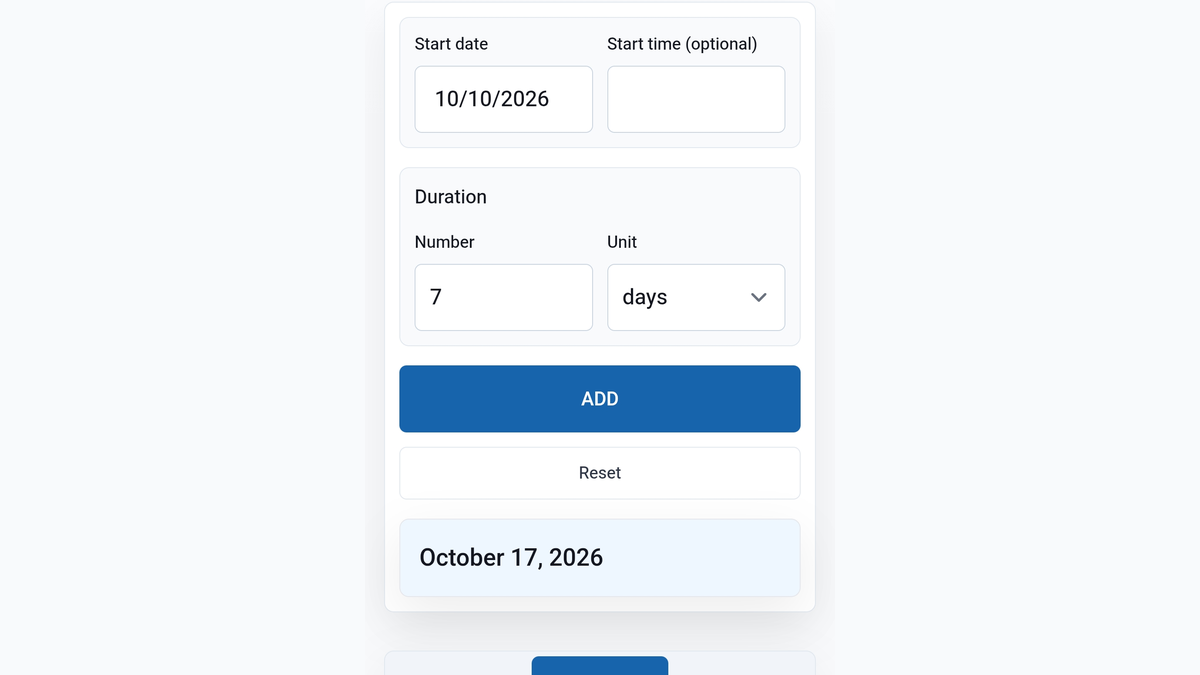
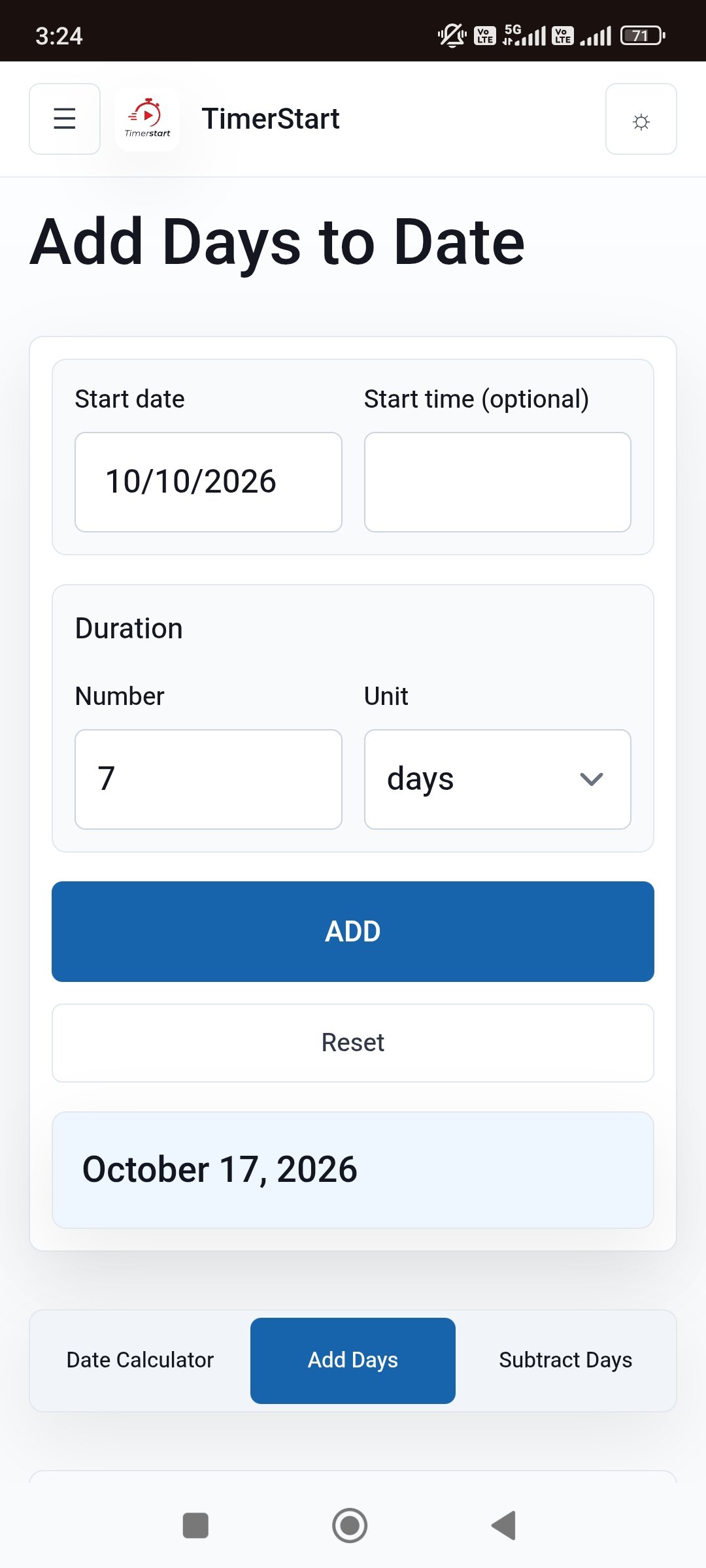
October 10, 2026 plus 7 days lands on October 17, 2026. Simple enough by hand for a week.
It gets trickier with bigger numbers, because you have to track exactly how long each month in between actually runs, and whether you're crossing a February that has 28 or 29 days.
That's where TimerStart's Add Days calculator earns its keep - enter the starting date and the number of days, and it gives you the future date directly.
Need the answer right now? Select your starting date and enter the number of days in TimerStart's Add Days calculator - no manual counting required.
Find the Future Date Instantly
Use TimerStart's Add Days calculator to choose a starting date, enter the number of days, and find the future date instantly.
What You Need Before Adding Days to a Date
Before touching a calculator, get three things straight.
Your starting date should be whatever your schedule, agreement, or reminder actually specifies - not automatically today. If a contract says "45 days from signing," your starting point is the signing date, not the date you happen to be reading this.
Use the exact number given, rather than rounding it into weeks or months in your head. And pay attention to the unit: if the instruction says days, enter days - don't quietly convert it into "about a month and a half," because that conversion isn't as clean as it sounds.
One more thing worth checking early: does this situation actually run on calendar days, or does it mean business days, banking days, or something else specific? That changes the answer, and a general calculator won't know which one applies unless you do.
Before You Add Days, Check These
A quick checklist keeps the calculation grounded before you trust the final date.
- Starting date
- Number of days
- Calendar days vs business days
- Leap year or year boundary
- Official deadline rules
How to Use TimerStart's Add Days Calculator
The process itself is short:
Open the Add Days calculator, select your starting date, enter the number of days you want to add, and run the calculation. Then just check the future date it gives you.
As an example: start with June 30, 2026, add 45 days, and you land on August 14, 2026. You didn't need to work out how many days were left in June, how many in July, or where August picks up - the calculator absorbs all of that.
How Adding Days to a Date Works
The underlying idea is nothing exotic: start on a given date, move forward one day at a time, for as many days as you specify.
A few things are worth keeping in mind. One day after January 10 is January 11 - no surprises there. Add zero days and the date doesn't move at all. Add seven and you typically land on the same weekday, one week later. Crossing into a new month or year doesn't change the mechanics of the count - it just changes what the resulting date looks like.
A few examples to ground this:
- October 10, 2026 plus 7 days = October 17, 2026
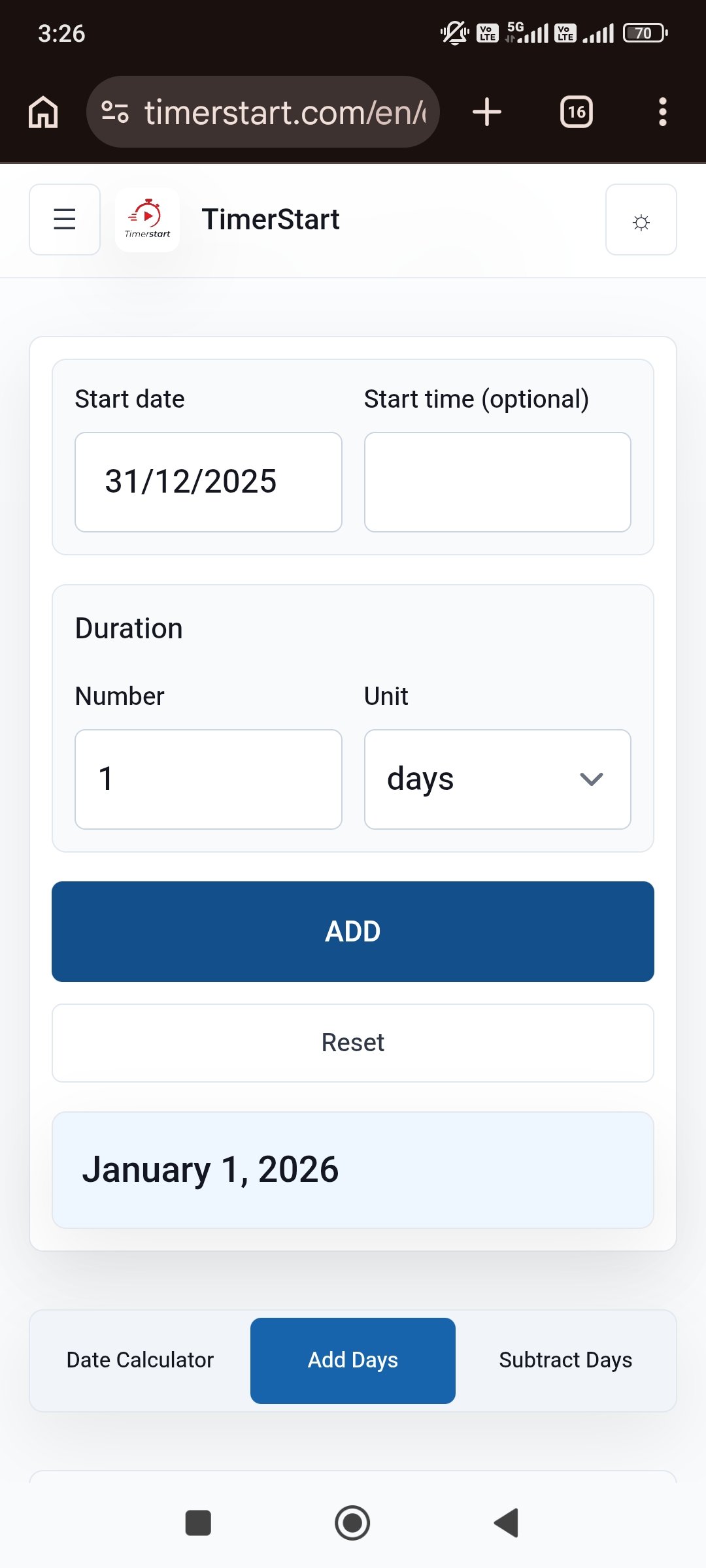
- December 31, 2025 plus 1 day = January 1, 2026
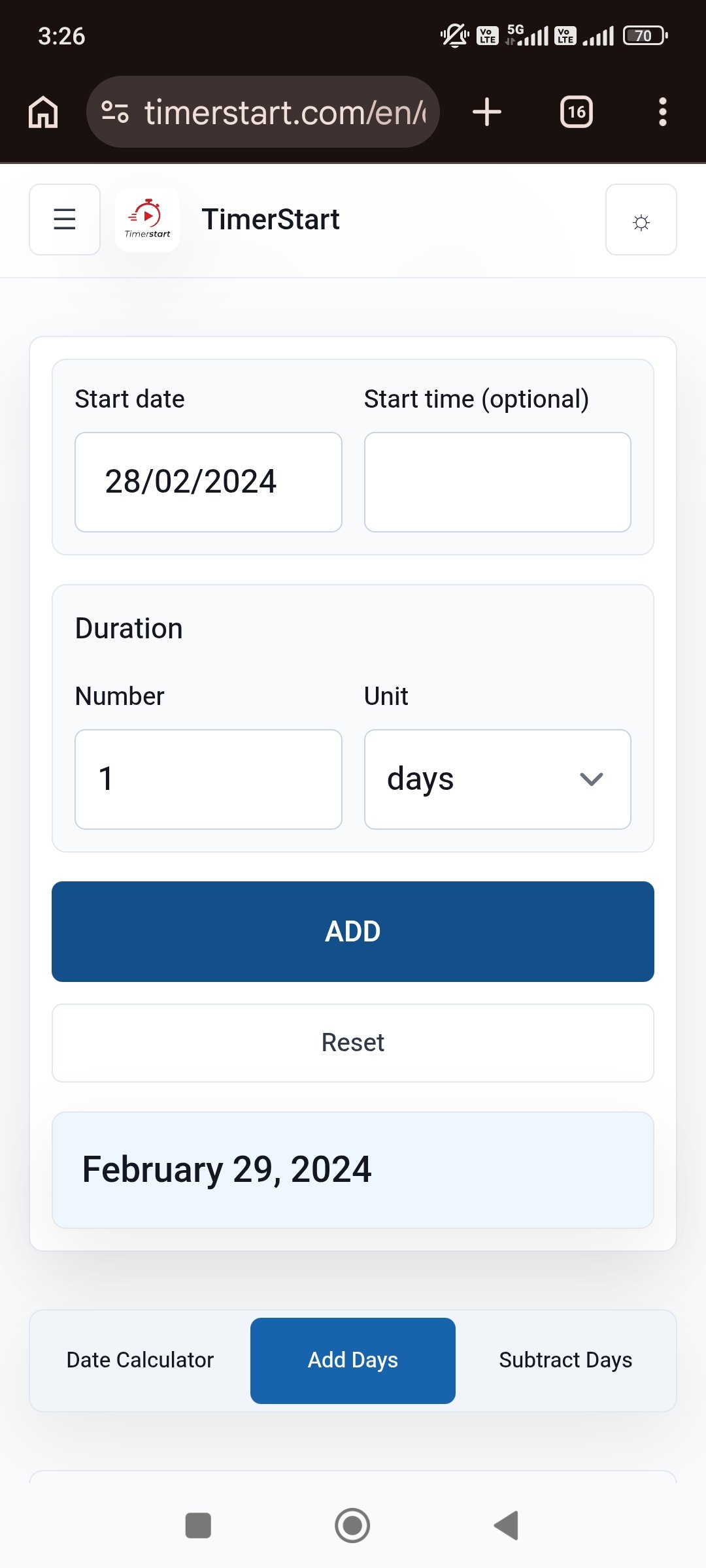
- February 28, 2024 plus 1 day = February 29, 2024
That last one's a leap year - worth remembering, since it changes things.
Examples of Adding Days to Different Dates
Seeing a spread of values side by side helps confirm the pattern holds.
| Starting date | Days added | Future date |
|---|---|---|
| October 10, 2026 | 7 days | October 17, 2026 |
| January 15, 2026 | 30 days | February 14, 2026 |
| June 30, 2026 | 45 days | August 14, 2026 |
| September 1, 2026 | 120 days | December 30, 2026 |
Swap in your own starting date and day count to see what you get.
If you're specifically after 30, 60, or 90 days from today, there's a dedicated article for that - this one's built around any date and any number, not just those three.
Adding Days Across Months, Years, and Leap Years
Three calendar quirks account for most of the confusion here.
Month boundaries first: add enough days near the end of a month and you naturally spill into the next one. Nothing complicated in principle, but it's easy to miscount exactly how many days that month had left.
Year boundaries: add days near the end of December and you can roll straight into the following year. December 31, 2025 plus 1 day is January 1, 2026 - a new year from a single day's movement.
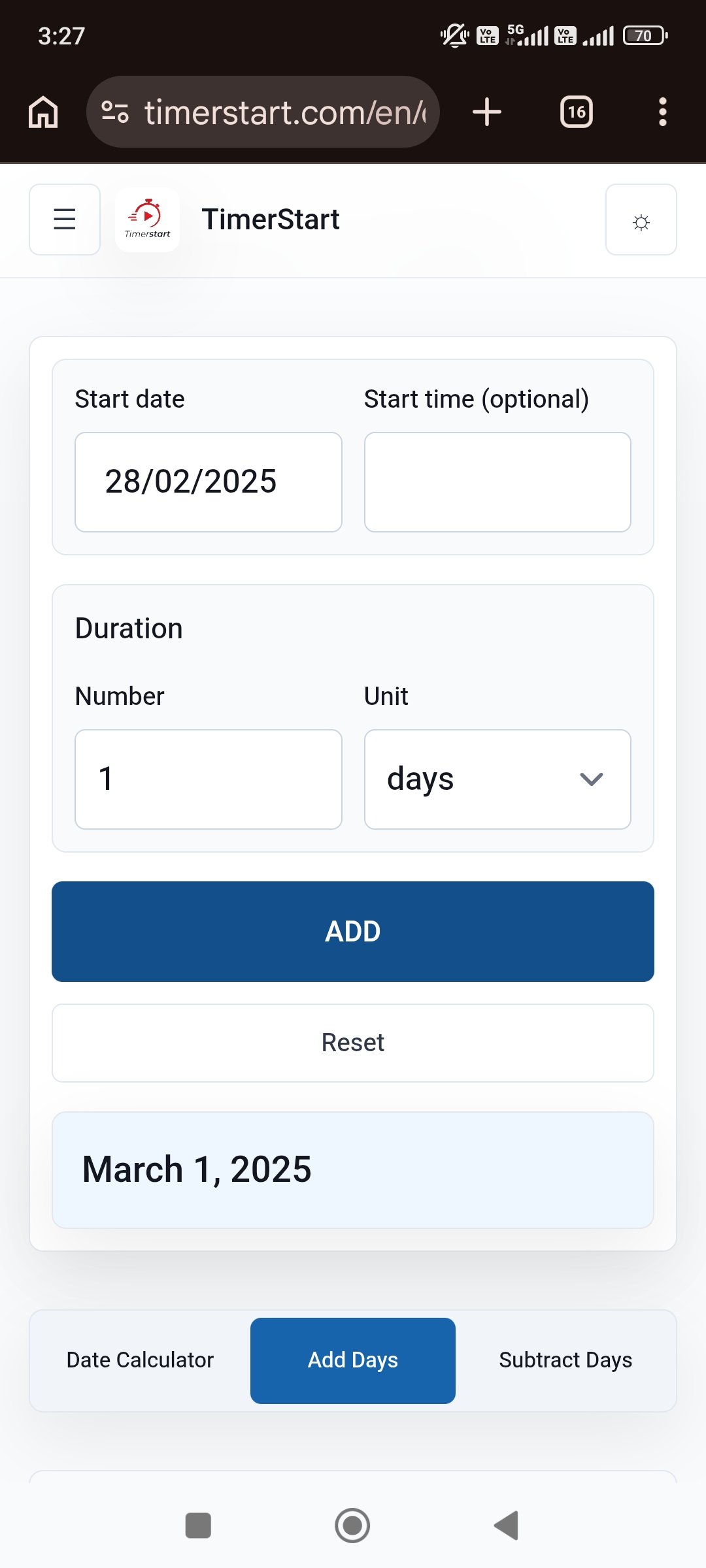
And leap years: February gets an extra day every four years, which matters if your calculation happens to cross it. February 28, 2024 plus 1 day is February 29, 2024, since 2024 was a leap year. February 28, 2025 plus 1 day, though, is March 1, 2025 - 2025 wasn't one.
Why Adding Days Is Not Always the Same as Adding Months
Here's a mix-up that trips up plenty of careful people: adding a number of days and adding a number of months aren't interchangeable, even when the numbers seem like they should match.
A day is fixed - always the same length. A month isn't; it runs anywhere from 28 to 31 days depending on which one it is and what year you're in. So adding 30 days isn't automatically the same as adding "one month," and adding 90 days isn't automatically "three months."
Take January 31, 2026. Add 30 days and you land on March 2, 2026. Add one calendar month instead, and you land on February 28, 2026 - because February 2026 only has 28 days. Same starting point, two different results, because one method counts days and the other counts months.
Whatever you're working from - a form, a contract, someone's instruction - use the unit it actually specifies. Don't assume the two are the same thing. For more on fixed ranges, see 120 or 180 days from today.
Calendar Days vs Business Days
One more distinction worth getting right: calendar days and business days aren't the same, and mixing them up can throw off a date that actually matters.
Calendar days include everything - weekdays and weekends alike, every date on the calendar in sequence. That's what TimerStart's Add Days calculator works with.
Business days are different. They usually skip weekends, and often skip public holidays too, though exactly which days get excluded depends on the country, the organisation, or whatever contract or policy is in play. There's no single universal rule for it.
So if you're dealing with something that specifically calls for business days, working days, banking days, or court days, confirm the actual rule before assuming calendar days will match. TimerStart calculates calendar dates - it isn't built to handle business-day or holiday logic. For the broader distinction, read Calendar Days vs Business Days.
Practical Reasons to Add Days to a Date
People need this for all sorts of concrete, ordinary reasons: setting a project milestone, working out a follow-up date, planning an assignment or study period, checking when a subscription or trial actually ends, planning the lead-up to an event, setting a travel-prep date, or reviewing when a bill or renewal is due.
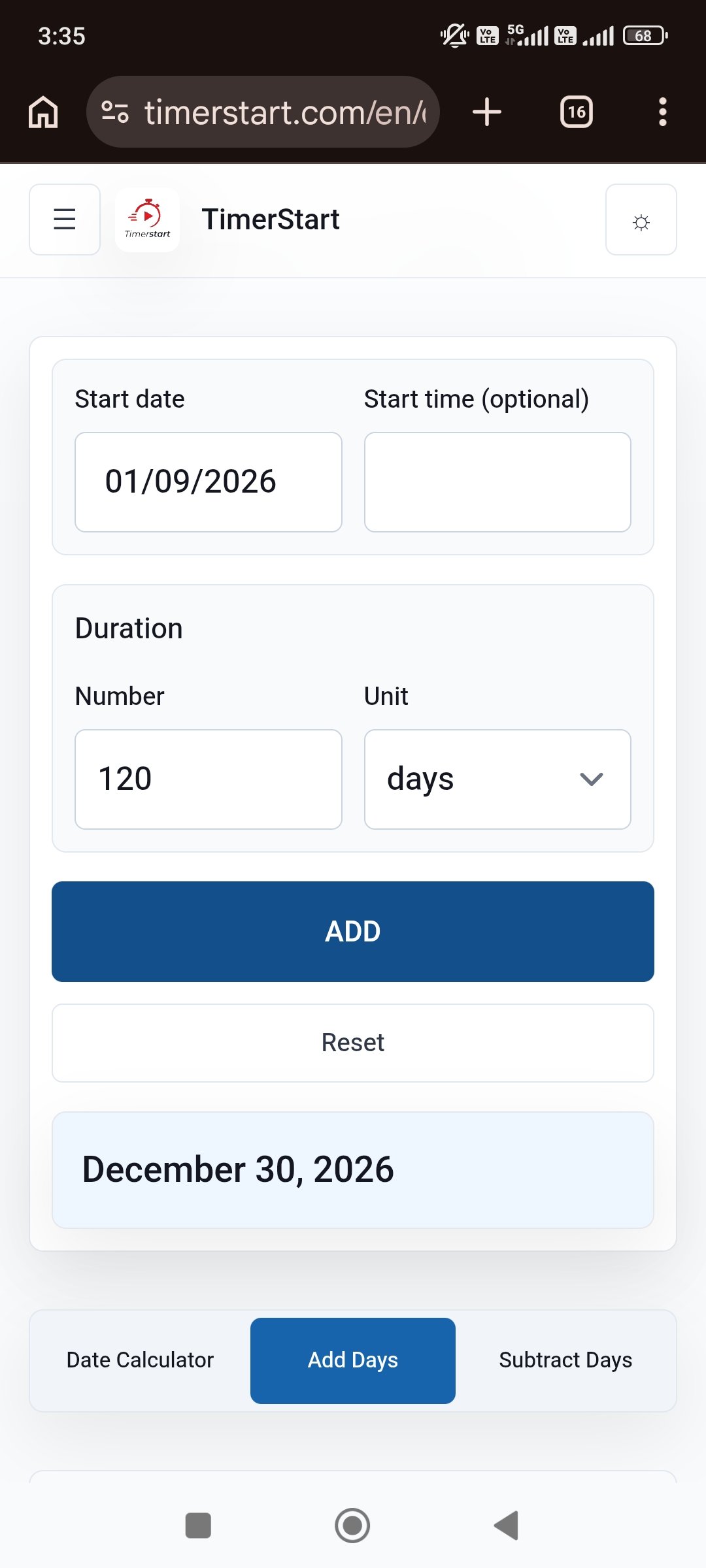
Here's a specific version of it: a project kicks off September 1, 2026, and its next milestone falls 120 calendar days later. Work it out and you land on December 30, 2026.
Enter your own starting date and number of calendar days, and let TimerStart do the rest.
Common Mistakes When Adding Days to a Date
A handful of errors explain most wrong answers: starting from the wrong date, counting the starting date itself as day one, entering months when the instruction actually said days, using calendar days when business days were required, forgetting a leap year, misreading a numeric date format, entering the wrong number of days entirely, ignoring time-zone or cutoff details that matter for anything official, and treating the calculator's output as legal or professional advice rather than a calendar calculation.
On date formats specifically: write dates out in full, like April 5, 2026, rather than 04/05/2026, which different countries read in different orders.
Use TimerStart to Find the Date After X Days
Whatever number you're working with, and whatever date you're starting from, the process stays the same. You don't need to count through each month by hand - TimerStart handles the ordinary calendar movement automatically, month and year transitions included.
If there's a specialized deadline rule involved - legal, medical, immigration, or otherwise - verify that separately, since those often follow their own counting logic rather than plain calendar days.
Open TimerStart's Add Days calculator, select your starting date, and enter the number of days you want to move forward.
A couple of related tools worth knowing about: the date calculator works out the number of days between two dates, and the Subtract Days calculator does the reverse of this article - moving a date backward instead of forward.
More Date Calculator Guides
For nearby date questions, see calculate days between two dates, 30, 60, or 90 days from today, 120 or 180 days from today, subtract days from a date, 30, 60, or 90 days ago, and calendar days vs business days.
FAQs About Adding Days to a Date
These answers cover the common questions people have when adding calendar days to a selected date.
How do I add days to a date?
Pick a starting date, decide how many days to add, and count forward through the calendar - or let TimerStart's Add Days calculator do it instantly.
What date will it be X days after a selected date?
Depends entirely on your starting point and what X is. Enter both into the calculator for an immediate answer.
Can I add days to a date other than today?
Yes - any date can be your starting point, not just today.
Do I count the starting date when adding days?
No. The starting date is day zero; counting begins the day after it.
Does an Add Days calculator include weekends?
Yes, if it's working in calendar days, which is what TimerStart's Add Days calculator does.
Are public holidays included?
In a calendar-day calculation, yes - every date counts regardless of holidays. Business-day rules are a separate matter and may exclude them.
Can TimerStart add business days?
No, it works with calendar days. If your situation specifically requires business-day math, confirm the exact rule that applies before relying on a calendar-day result.
Is adding 30 days the same as adding one month?
Not necessarily. Months vary in length, so the two can land on different dates depending on where you start.
Is adding 90 days the same as adding three months?
Also not guaranteed - three calendar months can span anywhere from 89 to 92 days depending on which months are involved.
Does a leap year affect future-date calculations?
Yes, if your calculation crosses through February in a leap year - that month runs 29 days instead of 28, which shifts the result.
What happens when the calculation crosses into another year?
It just continues. December 31 plus 1 day, for instance, lands on January 1 of the following year.
What happens if I add zero days?
Nothing - the date stays exactly where it was.
Why do two date calculators sometimes show different answers?
Usually because one is counting calendar days and the other business days, or the starting date was entered slightly differently between them. Worth checking which method each one actually uses.
Can I use the calculated date for an official deadline?
Treat it as a helpful starting point rather than a final answer. Legal, tax, immigration, medical, and employment deadlines often follow their own specialized counting rules - confirm anything important with the relevant authority or a qualified professional.
What if I need to calculate an earlier date instead?
That's the Subtract Days calculator - same idea, opposite direction.